Archive for the ‘Japanese’ Category

Japanese Input on OpenSUSE Linux 11.4 (KDE 4.6)

Monday, October 3rd, 2011

Setting up Japanese input on OpenSUSE Linux is not difficult, but it requires knowing what to install and when to restart the Linux system. It only takes a few minutes to download all the files and get it set up. Once installed and configured, you will be able to input Japanese characters and type Japanese and English whenever you want.

Prerequisites

  • YaST software repositories are configured properly.

Setup Procedure

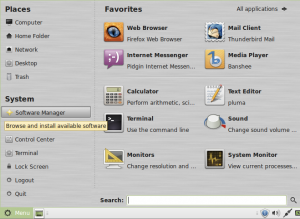
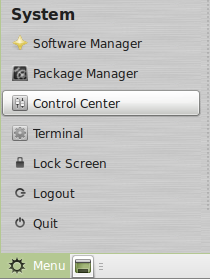
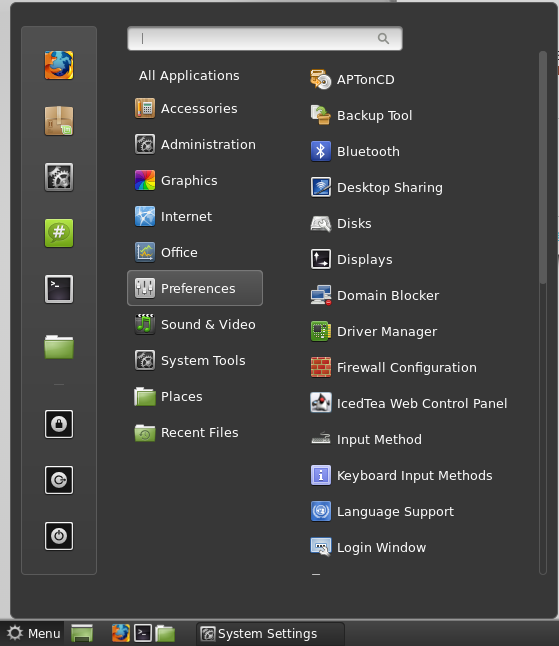
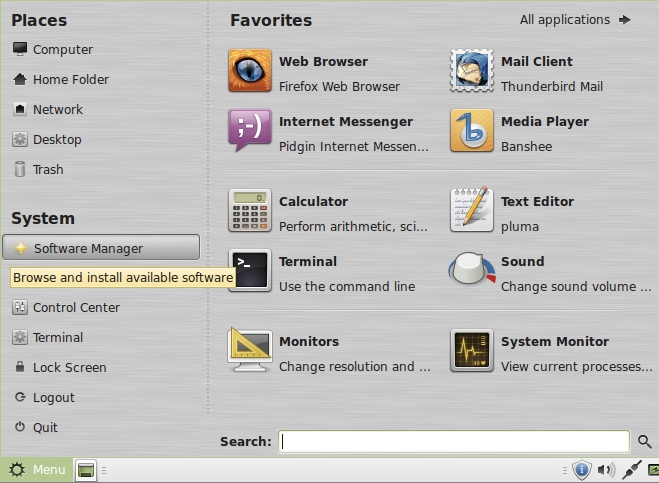
Click on the Kickoff Application Launcher.

On the Computer tab, click Install/Remove Software.

On the Search tab, search for anthy.

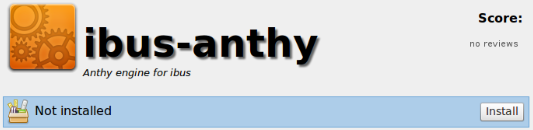
In the search results window showing the matching packages, select the anthy and ibus-anthy packages.

Press the Accept button on the bottom right of the window.

YaST will now download, install, and configure the anthy packages.

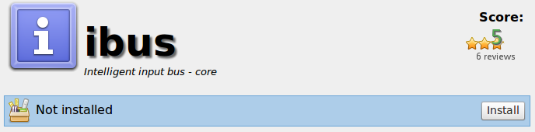
Do the same for ibus. Open Install/Remove Software, search for ibus, and select the package for ibus. Press Accept to install.

Click on the Kickoff Application Launcher, and from the Leave tab, click Restart to restart openSUSE with the new configuration.


After restarting, log back in.

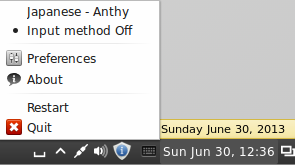
You will now have the IBus input method framework icon in the bottom panel.

Right click the IBus input method framework icon and click on Preferences.

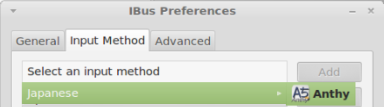
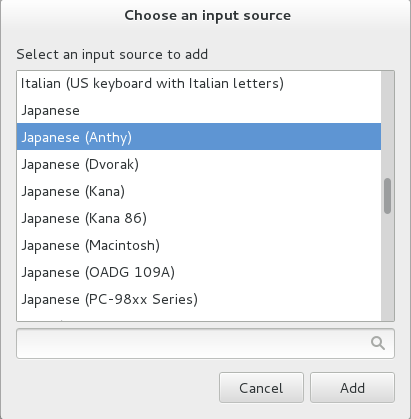
On the Input Method tab, select Japanese → Anthy from the dropdown menu.

Press the Add button to add Japanese Anthy input method, and then press Close.

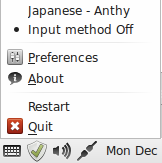
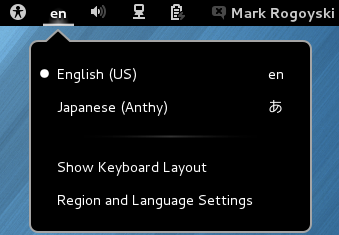
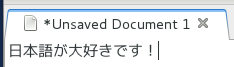
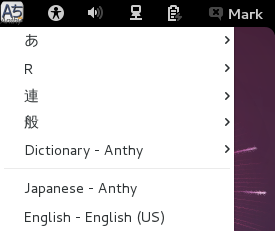
Open up a text editor or any application with a text input window, and click on the IBus input method framework icon and select Japanese – Anthy.

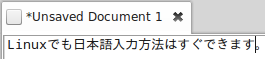
You can now type in Japanese.

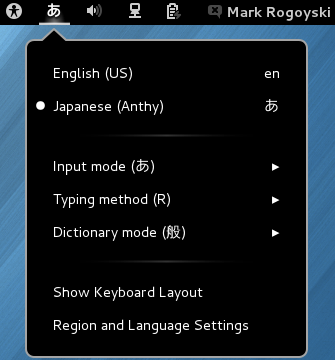
Click the Anthy crown icon to select between the various Japanese input modes.

That’s it. Setting up Japanese input on openSUSE 11.4 is not very difficult. When you try to type Japanese, make sure the cursor is in a text box in an application, or you may get an error saying No input window. Now enjoy your international Linux distribution.

Japanese Related Jobs

Monday, September 5th, 2011

If you speak Japanese, or are learning Japanese in college and want to find a job when you graduate where you can use your Japanese language skills, there are lots of options out there. Here are some industries and strategies for a Japanese-related career.

Local Japanese Companies

Assuming you don’t live in Japan, you can try to find a Japanese company that does business where you live. Many large Japanese companies are multinational and have offices all around the globe. For example, the top Japanese auto manufacturers: Toyota, Honda, Nissan, Mitsubishi, etc; High tech companies: Fujitsu, Toshiba, Tokyo Electron, Sony, Hitachi, Canon, NEC, Sharp, Sanyo, Fujifilm; Airlines: JAL, ANA; Video game companies: Square-Enix, Capcom, Nintendo; and the list goes on.

Japanese companies outside of Japan will always need Japanese speakers for everything from translation to supply chain operations to human resources for expats. Some positions could make full-time use of your Japanese skill, while for others, your main duty is something else, but merely having Japanese ability will be a huge plus to helping the work go smoother.

You don’t have to move to Japan to get a job where you use Japanese—you might have a Japanese company in your town that needs Japanese language skills.

Local Companies Doing Business in Japan

Non-Japanese companies are probably the most overlooked sources of Japanese-related jobs for Japanese speakers. Most large companies and multinationals all do business abroad. Some have direct operations in other countries, and some work through more indirect methods. In either case, there is often a need for people with language ability for those markets.

If a company has any sort of documentation, manuals, Web sites, etc., they have a need for product localization. Some may do it all in-house, while others contract it out to language service providers. For larger companies that do a lot of business in Japan, they may have on-staff language resources for product localization, testing, translation, etc. And even if they contract the translation work out to a vendor, they will need a localization manager to handle this work. Being bilingual is almost always a requirement for handling the translation vendor relations. Even if Japanese isn’t the most used language, it still helps that you have experience with a second language in order to be familiar with some of the issues that come up with translation and localization.

In addition to translation and localization related jobs, there are many opportunities on the business side for a Japanese speaker: supply chain management, import and export, making business arrangements, product marketing, etc. For any role that is needed to make business operations successful, having language ability for the target market can only improve your ability to handle the business matters even more smoothly.

Working in Japan

If you already live in Japan, then you have an advantage if your goal is to find a Japanese-related job. For everybody else, this will be a little more difficult. You can always apply directly to companies you are interested in, and there are also Web sites and organizations that can help.

The JET program is well known for bringing English teachers to Japan, but they also have a lesser known program called CIR (Coordinator for International Relations). Unlike a JET English teacher, a JET CIR works in a local Japanese city office or something similar and works on international projects and organizes cultural activities. Also unlike the JET English teacher position, the CIR position requires Japanese language ability because you will be working among Japanese coworkers.

If the JET CIR if not what you are looking for, you can always try to find a job from abroad through job posting sites. One site in particular that specializes in jobs in Japan is DaiJob.com (Work in Japan). DaiJob has a full range of listings. What I find very useful is each listing will list what level of Japanese proficiency is required. For example, some jobs might only required a casual conversational level, whereas others may require a level 2 or level 1 proficiency in the JLPT. This can really help you gauge what jobs are appropriate for your language ability level. There is also the business focused Japanese certification test, the BJT (Business Japanese Proficiency Test).

Language Service Providers

Language service providers, or LSPs, are companies that provide translation and other linguistic services. These are big, and often multinational companies that work with companies to provide translation, localization, and even product marketing services to take their products into new markets. Some companies, like SimulTrans for example, concentrate on the translation, localization, and globalization of your products/documentation. Other LSPs, like Sajan and SDL offer those services and much more. They have their own specialized software and managed services they offer in addition to the traditional translation services.

You can definitely work for an LSP as a translator, but that is not the limit of what they offer. Translation also requires proofreaders, reviews by subject matter experts, graphic designers and desktop publishing experts, audio and visual engineers, programmers, and quality assurance people. Additionally, project managers are there in every step to handle the business aspects as well as the translation resources. I imagine it is a requirement at most LSPs to be bilingual to even be a project manager. You can work in the translation industry and put your Japanese skill to use even if you aren’t doing translation work directly. A good project manager makes a big difference in the quality of the translations.

Translation

If you can speak, read and write Japanese proficiently as well as another language, then you can work as a translator. Translation jobs vary greatly by subject matter, location, job arrangement, etc. In other words, there are many ways to get into and go about being a translator.

Language Service Providers

One common option is to work for one of the previously mentioned language service providers. Most LSPs require you to translate into your native language. So for example, if your native language is English and you also speak Japanese, you would translate Japanese texts into English.

While it is probably possible to work at an actual LSP office as a translator, you would most likely work from home. You can set your own hours as long as you meet deadlines and commitments. Contracting with an LSP is similar to freelance translation work, except that the LSP takes care of all the business arrangements and provides you with the work for projects. As a translator, you can focus more on the translation task without worrying about trying to find, line up, and manage clients. The downside to this is you may have to accept their word rate and use whatever translation tools they require or provide. However, the upside is they handle the business arrangements and are more likely to be able to continually supply you with steady work.

LSPs generally contract with translators in any country that there is need. If you live in the U.S.A., Japan, China, Taiwan, Korea, and most European countries, it should be easy to find work doing Japanese translation work. While general translation work is always in need, specialized translation is also very common. As a translator, it is helpful to have experience or expertise in a certain field. Common areas that might require experience or expertise to get the translation job are: Legal, IT/computers, patents, medical, manufacturing, marketing/advertising, and so on. If you have a background or past experience in a certain field, that can be the advantage you have over other translators to being an LSP’s go-to person for those types of translations.

Translation is a big part of what LSPs do, but it isn’t the only job you can do for them as a contractor working at home. Every translation will need reviewers and proofreaders. Proofreaders may just check translations for language, and subject matter experts may check the translation for technical accuracy. They also need people with language skills who can work with graphics and page layout software.

To work for an LSP, you will most likely need to be familiar with how translation memory software works. The most used software is SDL Trados, although it is certainly not the only translation memory software out there. Learning translation memory software, multilingual glossary software, and learning what other dictionaries and translation tools are out there is definitely worth doing.

Freelance Translation

If you prefer even more freedom than is offered from an LSP, you can go into business for yourself as a freelance translator. You find your own clients, set your own prices, and determine how you will get the work done. For some people, this is a more attractive option than directly contracting with an LSP, especially if you are more business minded. For others, the freedom you have is the key point. For instance, many LSPs will require that you use specific translation software, such as SDL Trados. If you don’t like Trados, find it prohibitively expensive, or just prefer other software, then freelancing usually affords you that freedom.

The downside to freelancing of course is that you are on your own to find work. For any job posted to a job site, you may be competing with any number of other people for the job. There is also an element of risk when always working with different clients. Method of payment, details of work, required software, expectations, and attitudes vary greatly from client to client. However, if you find a good client and do good work, you have the potential to be their go-to person and receive steady work. Also, when you work directly for the client, you have a better chance of getting direct answers to questions that may come up during a job, whereas with an LSP you may have to ask questions indirectly through the LSP’s project manager.

To get started in the world of freelance translation, I would recommend checking out Proz.com. This is an excellent Web site for translators. They have job postings and client ratings, and also an active BBS for a wide range of translation-related discussions.

To get a leg up over other freelance translators, you may also consider improving your qualifications. A language-related certification could be the thing that a client uses to pick you over another translator. For Japanese, the gold standard in language skills is the JLPT (Japanese Language Proficiency Test). For practical translation skills, there are translation certifications as well. Once such qualification is from the American Translators Association.

Translator at a Company

Large companies that do business in Japan, especially if they have local documentation, product localization, and Web operations teams, may have a need for local language experts. For example, a company like Apple Inc., which has the majority of its operations in the United States, probably has Japanese speakers at the local U.S. operations to manage the Japanese localization of products, Web sites, and online help bulletin boards. There are probably many companies in the same situation that sell globally, but operate locally.

Interpretation

Interpreters are needed whenever people with different language backgrounds need to communicate. There are two types of interpretation: simultaneous and consecutive. Simultaneous interpretation is when the interpreter is speaking at the same time as the speaker. The people listening to the interpreter usually have a headset on. This is common for the United Nations, and big, generally assembly type meetings or conferences. Simultaneous interpreters need to be exceptionally proficient in both languages and be trained to translate in real time. Simultaneous interpreters usually command a high hourly rate and are used only at high profile events.

Consecutive interpretation is when one party speaks, and then you translate what they said. And then the other party speaks, and you translate what they said. This type of interpretation is often needed for business meetings, training conferences, business telephone calls, court rooms, hospitals, and any place where people of different language backgrounds will be working together. A business meeting may last all day and provide a nice hourly rate. In contrast, an insurance company may only need to communicate with someone involved in a car accident over the phone for 10 minutes. And then, legal matters that end up going to court could potentially last for weeks. This type of interpretation is less demanding than simultaneous interpretation, but you still may need expertise in a certain field.

You can definitely freelance as an interpreter. In fact, some people supplement their normal translation jobs with interpretation jobs. However, the need for interpretation can some times come up without notice, and many businesses may need to keep on file a language service provider that can accommodate these types of requests. It is very common to work for an LSP and be dispatched to local businesses or take phone calls as the need for interpretation comes up.

Airlines

If you fly to or from Japan, half of the passengers will likely be Japanese. In turn, the airlines will need bilingual Japanese speakers to be flight attendants and gate personnel and other roles. American carriers like American, Continental, Delta, etc., and overseas carriers like JAL and ANA all fly internationally to and from Japan, and need people who speak Japanese. And from my experience flying, a high level of fluency isn’t required. You just need enough conversational skills to serve meals, take requests, and see that the flight goes smoothly.

Japanese Jobs Summary

Japanese related jobs are out there, and often available in places you may not even considered looking. While Japanese translators will always be needed, it is not the only field where Japanese language skills are required. Be business minded and think about what the company needs might be, be it locally or globally. And even if a business does not do business in Japan, you might be the person with Japanese language skills they were waiting for to initiate their global entry into Japan.

Good luck in your Japanese related job searches.

Japanese Input on Fedora 15 Linux Gnome 3

Sunday, June 12th, 2011

Setting up Japanese input (IME) on Fedora 15 is easy and only takes a few minutes. However, it is a little different from previous versions because of the new Gnome 3 Shell user interface.

Fedora still uses the IBus keyboard input method system and uses the Anthy Japanese input method for the Japanese keyboard input, so it will be a familiar process to set up and use if you have done it on earlier Fedora Linux distributions. For Fedora 14 under Gnome 2, refer to this post.

This tutorial will get you up and running with Japanese input (IME) in just a few short minutes.

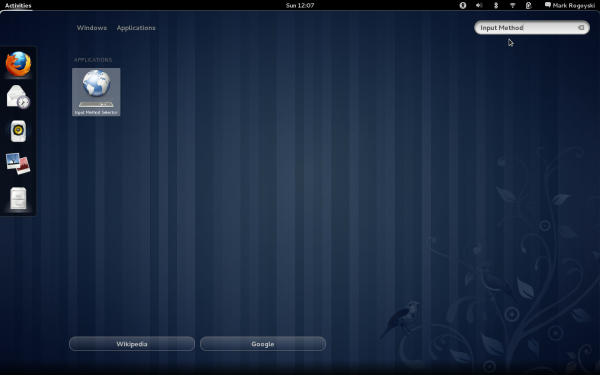
To start, open Activities from the Top Panel.

In the Search Box, type Input Method and select the Input Method Selector.

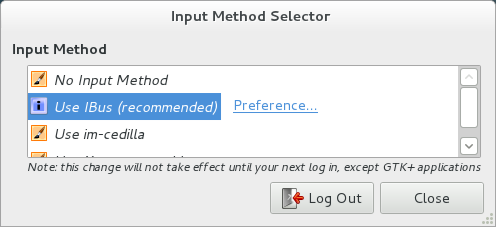
In the Input Method Selector screen, select Use IBus (recommended).

Press the Input Method Preferences button to open the IBus Preferences screen.

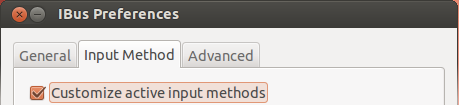
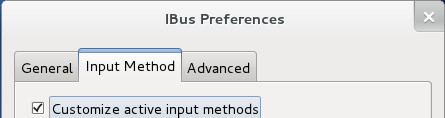
On the Input Method tab, check the Customize active input methods check box.

Press the Select an input method dropdown and select Show all input methods.

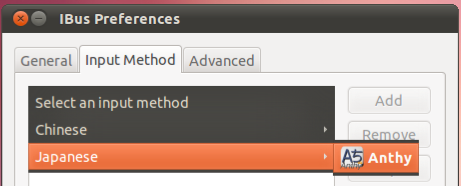
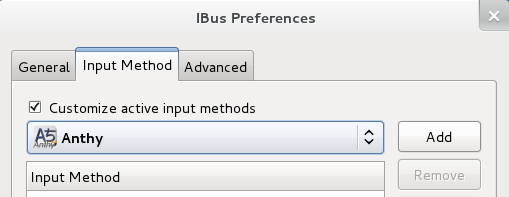
Press the Select an input method dropdown once again and now select Japanese → Anthy.

Press the Add button, and then press Close.

You must log out for the changes to take effect, so press the Log Out button on the Input Method Selector screen.

When you log back in you will now have the IBus input method framework button on the Gnome top panel (It looks like a small keyboard). This is the button to change input modes. Open a text editor such as gedit or some other application with a text input window.

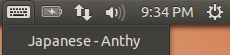
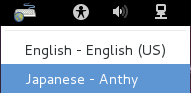
Press the IBus input method framework button and select Japanese – Anthy.

The keyboard icon has now changed to Aち, which shows the letter A and the hiragana character chi, which probably is trying to get something close the the pronunciation of Anthy while indicating Japanese/English input modes.

You should now be able to type in Japanese.

Use the Anthy Aち button to toggle between Japanese, English, and other Japanese IME modes.

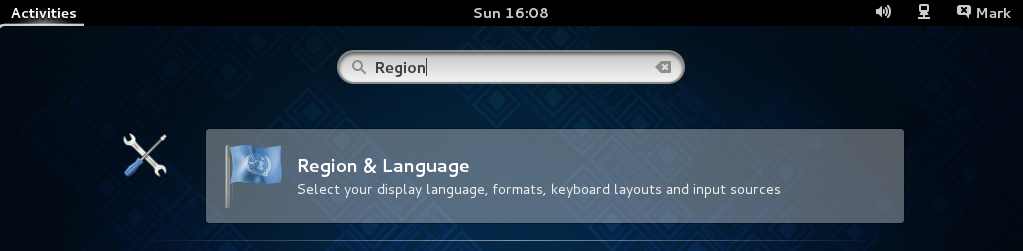
Note: When  I did this on Fedora 15 on my PC, after logging back in after changing the input mode, the display language was randomly changed to a different language. If this happens to you, just go to Region and Language from the System Settings and change it back to English or Japanese or whatever you prefer.

Note: If you get the message No input window when you try to select Japanese Anthy, make sure you have the mouse cursor in an application with a text input box, such as a text editor or a Web browser.

That’s it. You should be able to type in Japanese now. Even though the Gnome 3  Shell interface is new, you still set up and use Japanese input in a very similar manner.

Japanese Input on Ubuntu Linux 11.04 Natty Narwhal

Saturday, May 7th, 2011

This tutorial will show you how to set up Japanese input (IME) on Ubuntu 11.04 from the Unity interface. For Ubuntu 10.04 under Gnome, refer to this post.

To start, select Applications from the Unity Launcher.

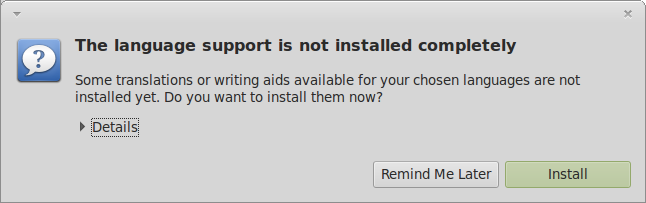
From the Applications menu, select Language Support.

On the Language tab of the Language Support screen, press Install / Remove Languages…

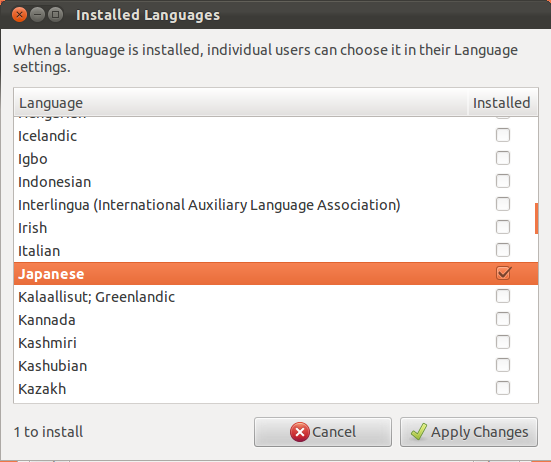
On the Installed Languages screen, scroll down to Japanese and check Input methods and Extra fonts, then press Apply Changes.

Enter your password on the Authenticate screen.

It will take a few moments to download and install the Japanese IME packages.

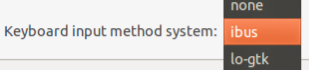
Back on the Language Support screen, select ibus for the Keyboard input method system, and then press Close.

Once again select Applications from the Unity Launcher.

From the Applications menu, select Keyboard Input Method.

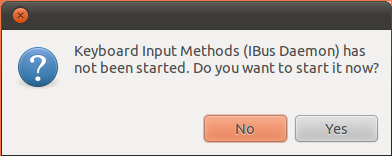
You may get a pop up message saying Keyboard Input Methods (IBus Daemon) has not been started. Do you want to start it now? Select Yes.

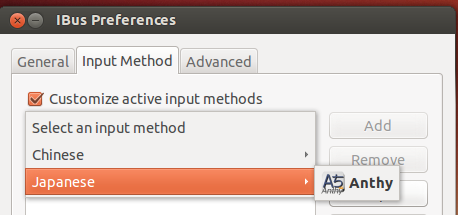
On the Input Method tab of the Ibus Preferences screen, press Select an input method and select Japanese → Anthy.

Press Add and then press Close.

The Ibus keyboard icon will now display on the top panel.

Open up any application with a text box such as Tomboy Notes and place the cursor in the text box.

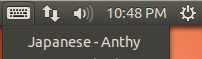
Press the Ibus keyboard icon on the tap panel and select Japanese-Anthy.

The Ibus keyboard icon will now change to the Anthy Aち icon.

That’s it. You can now type in Japanese in Ubuntu 11.04. できましたでしょうか。


Japanese Subtitles on Videos

Wednesday, May 4th, 2011

If you are studying Japanese and you have an interest in Japanese anime, dramas, or movies, I highly recommend watching them in Japanese with Japanese language subtitles. This is really helpful for listening comprehension, and is a great way to practice Japanese in an enjoyable way.

The view Japanese videos with Japanese subtitles, you will need:

* VLC media player
* Japanese videos (Dramas, anime, movies, etc.)
* Japanese subtitle files

VLC Media Player

VLC media player is available on all operation systems (Windows, Mac OS X, Linux), and more importantly, it plays all of the subtitle file formats. It also plays just about every movie file format there is as well. Windows Media Player and Quicktime only work with a limited number of subtitle formats and media file types. Just use VLC and you will not have to worry if your media player can load the subtitles.

Download VLC here.

Once you have VLC, there are some minor settings you need to adjust.
Open Tools → Preferences.
Go to the Subtitles & On Screen Display Settings
For the Default encoding, change this to Universal (UTF-8) if it ins’t already set to that.
Save the settings and VLC is ready to go.

Japanese Subtitle Files

Subtitle files are plain text files with a transcript of all the spoken dialog timestamped to when it should appear on the screen to align with the audio. Subtitles are usually “ripped” from a digital broadcast, but sometimes they are transcribed by hand.

The two main subtitle file formats you will run across are .srt and .ass files.

SubRip (.srt) subtitles are very basic. Because of this, they load very quickly and work with a lot of media players (but you are using VLC so this is not a concern). SRT subtitles just display text. These files are good for dialog and a lot of dramas use these types of files.

Here is an example of the plain text srt subtitles (Japanese):

Advanced Substation Alpha (.ass) subtitles are more advanced than .srt files. These subtitles can display a wide variety of type-faces and fonts, and can position and style text in very dynamic ways. This file format is also plain text, but because of the the fonts and positions are more complicated than standard subtitles, the video will take a few moments to prerender these before the video starts.

These subtitles are often used in anime and historical dramas. Historical dramas often need translation notes to explain signs and names that might appear on the screen, as well as supplemental information about historical figures, places, and events. Anime also has these as well as karaoke lyrics highlighted in real time for theme songs.

Here is an example of the more advanced .ass subtitles (English):

To play a video with subtitles, the subtitle file name must be the same as the video file name, with the exception of the file extension. For example:
Video file: SchoolDrama.mp4
Subtitle file: SchoolDrama.srt

Something you might see is an extra language file extension. A video might have subtitle files for multiple languages. In this case it will look something like this, assuming Japanese.
Video file: SamuraiAnime.mkv
Subtitle file: SamuraiAnime.jp.ass

As long as you only have the Japanese subtitle file, it will play automatically with the video. On the other hand, if you have multiple subtitle language files, you will need to manually select what language subtitles you want to display in VLC, or set the default subtitles to be Japanese.

Here are a few sites that provide Japanese language subtitles to a variety of shows:

Dramas: D-Addicts.com

Anime: Kitsunekko.net

As long as you use VLC and name the subtitle file correctly, it is really easy to watch Japanese videos with Japanese subtitles.

Double Clicking Japanese Text

Tuesday, April 5th, 2011

Double clicking text in Asian languages, especially Japanese, is something that has been overlooked in the localization of pretty much every operating system and application. If you want to copy a word into the clipboard, it is convenient to double click somewhere over the word and have the system automatically highlight the entire word for you.

Double clicking text in English and other European languages works like you expect it to. Double click on any word and the entire word is highlighted, like this: “DoubleClickMe.”

The reason why this works in English is because there are spaces on each side of the word. Japanese on the other hand has no spaces between each word. This makes the problem very difficult. Next, add in the multiple character types that Japanese has (Hiragana, katakana, and kanji), and now you have an extremely difficult problem.

Let’s look at some examples and see what happens.
今日は楽しかったです。

Double click on 「今日」 and it highlights the entire word.
Double click on 「は」 and it highlights the 「は」 particle.
So far so good.

Double click on the kanji of 「楽しかった」 and it highlights only 「楽」.
Double click on the okurigana (hiragana) after 楽 and it highlights 「しかったです」.

It is pretty obvious what is going on. Double clicking on Japanese text will highlight an entire string of one kind of character type.
In other words,

  • If you click on a katakana character, it will highlight the entire katakana string.
  • If you click on a hiragana character, it will highlight the entire hiragana string.
  • If you click on a kanji character, it will highlight the entire kanji string.

This is obviously not what we want it to do, but it makes sense why it does this. The OS or application that you are using doesn’t have any intelligence to be able to parse Japanese into individual, complete words. Therefore, by default, double clicking will highlight the longest string of similar character types.

Let’s look at a couple of interesting examples that really illustrate this behavior.

First, a complete sentence all in hiragana.
わたしはすしがきらいです。

Clicking anywhere on this sentence highlights the entire sentence. There is no way to highlight individual words by double clicking.

Next, a sentence with a lot of random kanji together.
寿司酒刺身河豚鮪日本米国東京横浜は、ランダムな漢字の文字列です。

Clicking anywhere on the initial long string of random kanji words will highlight the entire string. Without any intelligence, the system does not recognize that there are nine different words there, and a result, highlights the entire string.

Double clicking Japanese text does not work. It will highlight stuff, but it does not highlight anything meaningful most of the time. This behavior is universally wrong across all operating systems (Windows, Mac OS X, Linux, etc.) and applications.

Is this a Solvable Problem?

The answer is yes. What we need is an OS or application level intelligence about Japanese. One way to achieve this intelligence is to match text against a Japanese dictionary. When you double click Japanese text, the OS should match against the longest hit in the dictionary.

For example:
寿司食べ放題

If you click on 「寿」, it will hit 寿 (ことぶき) as a valid word in the dictionary, but it should continue on and recognize 寿司 (すし) as the longer and correct word, and highlight 「寿司」. It should not highlight the 「食」 character. If you click on 「食」, it should continue on in the dictionary search to highlight 「食べ放題 」. The kanji/hiragana mix should not play a role as a boundary character like it currently does.

For example:
わたしはすしが好きです。

If you click on 「好」, it will hit 好 (こう) as a valid word in the dictionary, but it should not stop there. It should also hit 好き (すき) as the longer, and correct word to parse in this case.

This should give us much better results when double clicking, but a dictionary compare is not enough to give us consistently correct results most of the time. The problem is a dictionary is only going to have the root words/conjugations/inflections etc. Therefore, we also need intelligence to understand parts of speech and conjugations and how they relate to the root words in the dictionary.

For example, the previous sentence:
今日は楽しかったです。

If you click on 「楽」, it will hit 楽 (らく) as a valid word in the dictionary, but it should not stop there. It should also hit 楽しかった even though it is not in the dictionary, because it is the past tense of the word 楽しい, which is in the dictionary. 「楽しかった」 should be completely highlighted, and it should not continue on and highlight です because that is not part of the word 楽しい.

Conclusion

There are no operating systems that properly parse and highlight the correct words when double clicking. This is definitely not an easy problem to solve, but it is possible and should be done on Japanese systems.

There are two software applications that I know of that can parse Japanese properly most of the time: Rikaichan and NJStar. Rikaichan is an add-on to the Firefox browser, and NJStar is a Japanese word processing application. They both have a mouse-over hover function that parses complete Japanese words. You can also double click and get the expected result as well. These two applications both use a Japanese dictionary back end and have enough Japanese language intelligence to parse conjugations and inflections of words to get the expected match most of the time.

There are times when Rikaichan does not parse the expected result. I will cover those exceptions in a future article about parsing Japanese. However, Rikaichan is right about 99% of the time, which is great considering that your OS is usually wrong 90-95% of the time when it comes to double clicking Japanese text.

Italics in Japanese

Sunday, February 27th, 2011

When translating a document with formatting, such as a Microsoft Word document, you can’t always use the original source-language formatting in the translated language as is. This is especially true of italic type in Japanese. What works in italics in English does not work in Japanese. The formatting must be changed.

The main reason for this is Japanese text can become nearly unreadable when set in italic type. This is especially the case on low resolution monitors when displaying kanji in bold, italic fonts.

When translating English into Japanese, it is best to change the formatting for text in Japanese that was originally in italic type in English.

Here is a mini style guide of recommendations of how to format Japanese text that was translated from English set in italic type.

Emphasis

Use a Gothic bold-face type, or write the word in katakana if appropriate.

正しいのは、わたしだけです。

Another way to show emphasis is to use a well-known English phrase and write it in katakana.

それはマジックに違いない。

Titles of Books, Publications, Media, etc.

Use the Japanese double quotation marks to quote the name of a publication.

『異星の客』は、アメリカの1961年に書いた小説である。

Foreign Words

In English these would be written in italics. In Japanese, they will be written in either katakana or romanized type, which serves the function of designating it a foreign word.

Introducing or Defining Terms

Use the Japanese single quotation marks.

「iPad」とは、タッチパネルを搭載したタブレット型端末である。

Other

In other instances where italics are used in English, it is usually safe to use the Japanese single quotation marks.

In general, it is best to avoid italic type in Japanese. Certain Japanese typefaces don’t even have an italic font to begin with. It is very important to thoroughly proofread documents translated into Japanese for these types of formatting issues. What is natural in English can produce something almost unreadable in Japanese. And it will be a lot more natural to use something other than italics.

This also works the other way around when translating from Japanese into English. Where quotation  marks and katakana etc. are used in Japanese should be changed into italics in the English translation where appropriate.

Using Wikipedia as a Translation Resource

Monday, February 21st, 2011

When you are translating something, sometimes there are words or phrases that just aren’t in the dictionary. A site like ALC is amazing for Japanese/English translations, but even ALC doesn’t have everything.

In those cases, I have found Wikipedia to be an excellent online resource for doing translations. Although a word or phrase might not be in the dictionary, there might be a Wikipedia article about it. And if there is a Wikipedia article in one language, it might have a translated version of that article in another language.

Using the Languages Sidebar to Find Translations

On the left-hand side of each Wikipedia article is a sidebar with lots of options. One of these options is for languages.

If there is a similar article in a the Japanese language Wikipedia, you will see the link for 日本語 to read the Japanese article.

For example, when translating manufacturing documents that deal with chemicals, you will often come across an MSDS (material safety data sheet). This type of phrase is usually not in the dictionary, but it has an established name in Japanese. To find the proper Japanese, just go to the English Wikipedia article for MSDS, and click on the link to the Japanese version of the article and you will see that it is 「化学物質安全性データシート」.

Lots of phrases that are difficult to look up in dictionaries may have a dedicated Wikipedia article that you can use to find the translated Wikipedia article, which will lead you to the correct translation.

Using Wikipedia to Better Understand How to Translate Something

Sometimes even Wikipedia doesn’t have translated articles of what you need to translate. This is often the case for something that is very unique to the source language you are translating.

An example of this I came across at work translating semiconductor maintenance procedures from Japanese to English is the Japanese phrase KY. It is often written in English just like that. In Japanese they often use English for certain things for them to stand out. In this case, however, I was stumped as to what this was—until I searched Japanese Wikipedia.

Japanese Wikipedia had an article linked from KY to the main article for 「危険予知訓練」. This made sense in the context of what I was translating. This was what KY meant: kiken yochi. Although there is no English article link to get the proper English translation (probably because we don’t use the phrase KY in English), there is enough of an explanation to understand what kiken yochi is and how to translate it. And, as luck would have it, the Japanese article has an English example of what kiken yochi is: tool box meeting.

After reading about kiken yochi and discussing it with others, we came up with pre-task planning as the translation we would use. Job hazard analysis is also a suitable translation for KY.

In the case of KY, Wikipedia did not have a direct link to a translated English article because the term KY is Japanese for kiken yochi, but it did provide enough explanation to be able to come up with an appropriate translation.

If you can’t find a translation for something, learn about it and come up with your own. Wikipedia is often a great resource to learn enough about something to be able to translate it when you come across a term or phrase that just isn’t in any dictionary.

Japanese Input on Fedora 14 Linux

Sunday, February 20th, 2011

Fedora 14 is the quickest and easiest Linux distribution to get Japanese input working so you can type in Japanese. Fedora uses the IBus keyboard input method system and uses the Anthy Japanese input method for the Japanese keyboard input.

This short tutorial will show you step by step how to get Japanese IME setup on Fedora 14 in a few short minutes. There is noting to install—just a few menus to navigate and you are all set up to type in Japanese.

To start, select from the top panel SystemPreferencesInput Method


On the IM Chooser – Input Method configuration screen, click the check box to Enable input method feature.

Then click the Input Method Preferences… button.

On the IBus Preferences screen, select the Input Method tab.

Press the Select an input method drop down and scroll down to select JapaneseAnthy.

Press the Add button to add Anthy as the Japanese input method.

Press the Close button on the IBus Preferences screen.

Press the Log Out button on the IM Chooser – Input Method configuration screen.

Press Log Out on the Log Out popup window to log out of Fedora.

Log back in to have the new Japanese input method changes take effect.

You will now have the IBus input method framework button on the Gnome top panel. This is the button to change input modes. Open a text editor such as gedit or some other application with a text input window.

Press the IBus input method framework button and select Japanese – Anthy.

The keyboard icon has now changed to Aち, which shows the letter A and the hiragana character chi, which probably is trying to get something close the the pronunciation of Anthy while indicating Japanese/English input modes.

You should now be able to type in Japanese.

Use the Anthy Aち button to toggle between Japanese, English, and other Japanese IME modes.

That’s it. Now you can type in Japanese, as well as quickly toggle between English and Japanese on the fly in Fedora. As an added convenience, the IBus input method remembers individual preferences per application. So if you are typing Japanese in gedit, but writing an email in English in Firefox, you can switch between the applications and IBus will give you the correct input method that you last used in that application.

Sorting in Japanese — An Unsolved Problem

Sunday, February 13th, 2011

Sorting Japanese is not only difficult—it’s an unsolved problem. This seems hard to believe if you are not familiar with the complexities of processing Japanese digitally. But what is trivially easy in English is impossible in Japanese, even with the amount of computer power we have available today.

The problem comes from the complex nature of written Japanese. Contrast it with English, which only has 26 letters: a comes before b; b comes before c; and so on. On the other hand, Japanese not only has thousands of characters, it also has four different kinds of written characters. But this is only the beginning of the difficulty. The unique nature of kanji characters and their associated pronunciations is the language feature that makes Japanese unsortable.

Let’s work our way through the complexities to understand why Japanese cannot be sorted.

A Simple Sort

Let’s do a simple sort of a list of English words. Here I have a list of characters from the video game Street Fighter.

  • Ryu
  • Ken
  • Chun Li
  • Yun

Let’s put this list through a simple sort function using PHP.

<?php
   $names = array (“Ryu”, “Ken”, “Chun-Li”, “Yun”);
   sort ($names);

   foreach ($names as $name) {
      echo “$name<br/>”;
   }
?>

Here is the result:

  • Chun Li
  • Ken
  • Ryu
  • Yun

This is the result we expect—it’s in alphabetical order. A computer can easily sort English in alphabetical order because there are simple rules. C comes before K; K comes before R; and R comes before Y. You should have learned this in the first grade.

Now let’s start looking at the complexities of Japanese, and see why sorting does not work as easily.

Multiple Character Sets

Japanese has four different character sets in the written language. Don’t worry about why there are four different types of characters, just know that there are.

  • Hiragana alphabet — ひらがな
  • Katakana alphabet — カタカナ
  • Kanji characters — 漢字
  • ABC alphabet — abc

Here is where the difficulty comes in: each character set has characters with the same pronunciations as characters in the other sets. On top of that, all four character sets are written together to form what is modern written Japanese. If you only had to deal with one character set at a time (ignoring kanji for the moment, we will get to that later), you could sort Japanese automatically just like English. Hiragana sorts just fine; katakana sorts just fine; and the ABC alphabet sorts just fine. But, in combination, it is not clear how you would sort these.

I should note that there are two different alphabetical sorting orders in Japanese. For this article I am going to use the a i u e o (あいうえお) sort order.

Sorting Settings

Now let’s look at an example of sorting mixed character sets. Again, using PHP.

<?php
   setlocale(LC_ALL, ‘jpn’);
   $settings = array (“システム”, “画面”, “Windows ファイウォール”,
      “インターネット オプション”,  “キーボード”, “メール”, “音声認識”, “管理ツール”,
      “自動更新”, “日付と時刻”, “タスク”, “プログラムの追加と削除”, “フォント”,
      “電源オプション”, “マウス”, “地域と言語オプション”, “電話とモデムのオプション”,
      “Java”, “NVIDIA”);
   sort ($settings);

   foreach ($settings as $setting) {
      echo “$setting<br/>”;
   }
?>

Here is the result.

  • Java
  • NVIDIA
  • Windows ファイアウォール
  • インターネット オプション
  • キーボード
  • システム
  • タスク
  • フォント
  • プログラムの追加と削除
  • マウス
  • メール
  • 地域と言語のオプション
  • 日付と時刻
  • 画面
  • 管理ツール
  • 自動更新
  • 電源オプション
  • 電話とモデムのオプション
  • 音声認識

Take a look at what happened with this sort. The first three strings start with characters of the alphabet, and were sorted as we expect. The next eight strings are in katakana, and they are sorted correctly according to the Japanese a i u e o sort order. The rest of the strings all start with kanji and are not sorted in any way that makes sense to a human.

So what is going on here? In this case, it seems that PHP is using the character code to determine the sort order. This works fine with alphabets like English, or even the Japanese katakana, because the character codes go in order with the sort order. But the character codes do not go in order when mixed with other character sets. In this example you can see ABC and katakana are separated. Kanji are then separated from katakana. There were no hiragana in this list but they would do the same. Sort order by character code works fine for alphabets when the alphabets are by themselves. But once you mix alphabets together, you cannot have any sensible sorting order by doing it that way.

An observant reader might have noticed what these items in our list are: Control Panel items in Windows XP. It’s clear that PHP’s sort function can’t sort this properly. But what about Windows XP Japanese edition?

Microsoft seems to have the same problem. They do alright with sorting each character set individually. But they don’t seem to be able to integrate the character sets together like a Japanese user would expect. It’s OK, I don’t expect Microsoft to be able to solve such a hard problem.

Sorting Names

Let’s look at another example to show what happens when you have all four character sets sorted together. Here we have two names, both written four different ways—using each character set: ABC alphabet, hiragana, katakana, and kanji.

Ayumi、 あゆみ、アユミ、歩美

Tanaka、たなか、タナカ、田中

It is very possible to have different people with the same name write their name in different character sets. The traditional way of writing the Japanese name of Ayumi would be written in kanji; a modern, stylish way would be to write it in hiragana, and a second generation Japanese-American might write their name in katakana or the alphabet.

Put these names into the same PHP sort function and look what happens.
<?php
   setlocale(LC_ALL, ‘jpn’);
   $names = array (“Ayumi”, “アユミ”, “あゆみ”,  “歩美”,  
   “Tanaka”, “タナカ”,  “たなか”, “田中”);
   sort ($names);

   foreach ($names as $name) {
      echo “$name<br/>”;
   }
?>

Here is the result:

  • Ayumi
  • Tanaka
  • あゆみ (Ayumi)
  • たなか (Takana)
  • アユミ (Ayumi)
  • タナカ (Tanaka)
  • 歩美 (Ayumi)
  • 田中 (Tanaka)

Within each character set Ayumi is sorted before Tanaka, which is correct for the ABC, hiragana, and katakana alphabets. The kanji pair had a 50/50 chance of being right. But as you can see, the different character sets are not integrated together. If these were all names in your phone’s contact list or your Facebook friends list, you would expect all of the Ayumis and Tanakas to be listed together.

The ABC, hiragana, and katakana alphabets can be sorted—although which character set of Ayumi gets sort preference is a whole other issue—once that preference is agreed upon, sorting can be done just as easily as English.

Kanji — The Real Problem

The real problem with sorting Japanese text is kanji. Kanji aren’t just difficult for students of Japanese to make sense of, they are literally impossible for computers to process with the same intelligence as a human. The reason for this is the following:

Kanji have multiple pronunciations, determined by the context in which it appears.

This fact keeps students up nights studying for years trying to remember how to pronounce kanji right. And it also makes our sorting problem extremely nontrivial. We sort things in language by the pronunciations. Up until now we were dealing with letters. ABC, hiragana, katakana—these are all letters which a single pronunciation. There is only one place they can go.

Kanji on the other hand all have multiple pronunciations. Some have over ten! Only from the context in which the kanji appears do you know how to pronounce it. Our simple sorting problem has now turned into a natural language processing problem.

Here is an example:

私は私立大学で勉強しています。

Here the kanji 私 is used in two different contexts. The first usage, is 私 (watashi). The second usage is part of the compound word 私立大学 (shiritsu daigaku). Using the Japanese sort order, these words should be sorted like this:

  • 私立大学 (しりつだいがく)
  • 私(わたし)

A second year Japanese student could figure this out. For a computer, this is a very difficult problem.

Here is another, more extreme example.

There are four Japanese women whose names you have to sort: Junko, Atsuko, Kiyoko, and Akiko. This does not seem difficult, until they each show you how they write their names in kanji:

  • 淳子 (Junko)
  • 淳子 (Atsuko)
  • 淳子 (Kiyoko)
  • 淳子 (Akiko)

As you can see, this is rather troublesome. This comes back to kanji having multiple pronunciations. If this was for an address book of your phone contacts for example, you would want Atsuko and Akiko listed with the A names like Ayumi and Akira. But you would not want Junko and Kiyoko listed there.

And this problem is not limited to names. Regular, everyday words also have multiple pronunciations. For example, 故郷 (ふるさと、こきょう), 上手 (じょうず、じょうて、うわて、かみて…) etc.

So how do we deal with this? They have phones and social networking Web sites in Japan with sorted contact lists, so how can we sort these words properly?

The Wrong Way – Using IME Input

First, let’s look at a good try, but failed attempt at Microsoft to try to solve this problem. What good would Excel be if you could not sort on columns and rows. Microsoft clearly understands the issue with sorting Japanese—they just didn’t think through the solution thoroughly.

What Microsoft does in Excel is to capture the input the user types to get the kanji character. For example, if you typed Junko to get 淳子, it will save that input string as meta data in the background. When it is time to sort, it sorts on the input pronunciation meta data rather than the kanji that are displayed. You can actually see what the meta data looks like in Excel 2003 if you save as XML.

You can see the kanji 淳子 is in two different rows, but the input used to get them was different, Atsuko and Junko, so those are saved as meta data to assist with sorting later on.

The problem with this approach is it doesn’t take into account of how people actually interact with computers using a Japanese IME system. Japanese input works with a dictionary of possible kanji conversions based on what has been input. But not every word or name is in that dictionary. Sometimes you have to type each kanji individually or use a totally different pronunciation to get the kanji you want to show up. This results in the wrong pronunciation being saved as meta data, and sorting will not work as expected.

This system also doesn’t work with cutting and pasting text from other sources, as well as any sort of CSV or database import, etc. This was a good try by Microsoft to solve this problem, but it just doesn’t work.

The Right Way – Ask the User

A computer simply cannot guess the correct pronunciation of kanji, even if it logs the users input, because that might not even be correct. The easiest way to solve this problem is just ask the user for the pronunciation! Most software developed in Japan uses this approach.

Let’s look at this approach done correctly: Amazon.com. Let’s look at their new user registration First, notice the fields in the English version of this screen.

Now look at the Japanese version of this screen.

As you can see, the Japanese version has an extra field. This is for the user to enter the pronunciation of their name in katakana. This way, Amazon has their name in kanji, and the correct pronunciation to go with. They can now sort their user information correctly. This is the approach that most Japanese software takes. It is an extra step, but it solves the problem.

The big takeaway from this is that you cannot just translate software, or even a Web site, and expect it to work. Something as simple as registering a new user has to be completely reworked. In the case of a simple Web site, you will need to redo not only the Web interface, but also the database back end and the code to interface with the database and Web site generation. Localizing a site into Japanese is much more complicated than other languages because of the extra functionality that is required.

While Amazon.com does do the interface and programming localization correct, they do have something on their site that isn’t localized for the Japanese audience: Their logo.

In English, the logo goes with their saying: “Everything from A to Z.” This is indicated by the arrow. But in Japan, and any other country that doesn’t use English, A and Z aren’t always the first and last letters of the alphabet. The A to Z thing works in English because the name Amazon has A and Z in it. But in other countries, they might not have any idea why there is an arrow under the Amazon logo.

Final Thoughts

Sorting in Japanese is hard. Without user input, it is impossible in some contexts to know how to sort some Japanese words. People developing and localizing software need to understand these issues. But regarding the general problem of sorting Japanese when you don’t have user input to give the pronunciation, there may not be a way to automate this until computers can understand language as well as a native Japanese person. For a computer to understand Japanese is far more complex than most other languages. You can see this first hand by using machine translation software and comparing Japanese to something like French.

I think this is an interesting problem. This goes beyond just sorting. How can you expect a machine translation program to work if it doesn’t even know the pronunciation of a word—something that can be key to understanding what that word is. I can imagine even statistical machine translation being confused, especially with names.

Japanese is an interesting language, and processing it with computers is even more interesting.