
Japanese Input on Ubuntu Linux 10.04 LTS Lucid Lynx

June 15th, 2010

The latest release of Ubuntu, 10.04 LTS Lucid Lynx, makes a lot of things easy in Linux. And setting up Ubuntu with a Japanese IME to type in Japanese is as easy as ever. Whether you are a student of Japanese or a native Japanese speaker, you will need to set up Ubuntu to type in Japanese if you are not on a Japanese system.

This simple tutorial will get you set up with a Japanese input method in as few steps as possible.

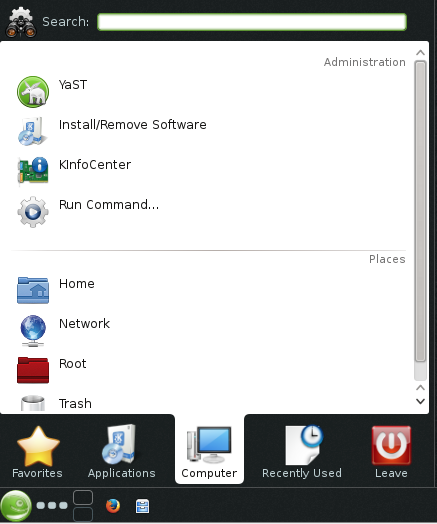
To start, select from the top panel SystemAdministrationLanguage Support

System - Administration - Language Support

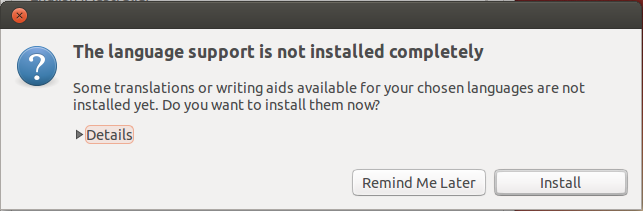
In the Language and Text screen, press the Install / Remove Languages… button.

Language and Text Screen

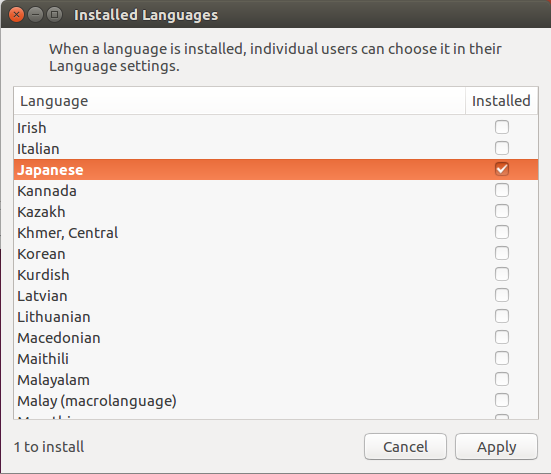
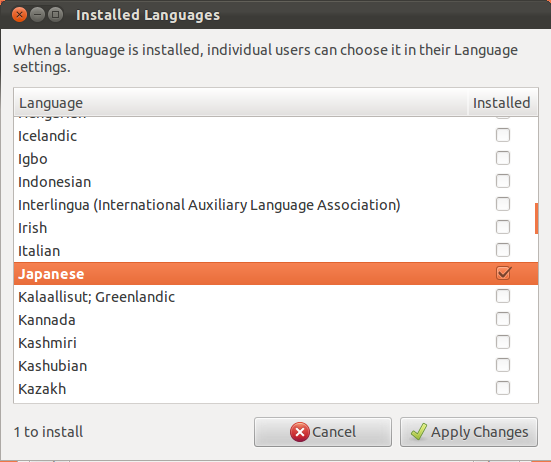
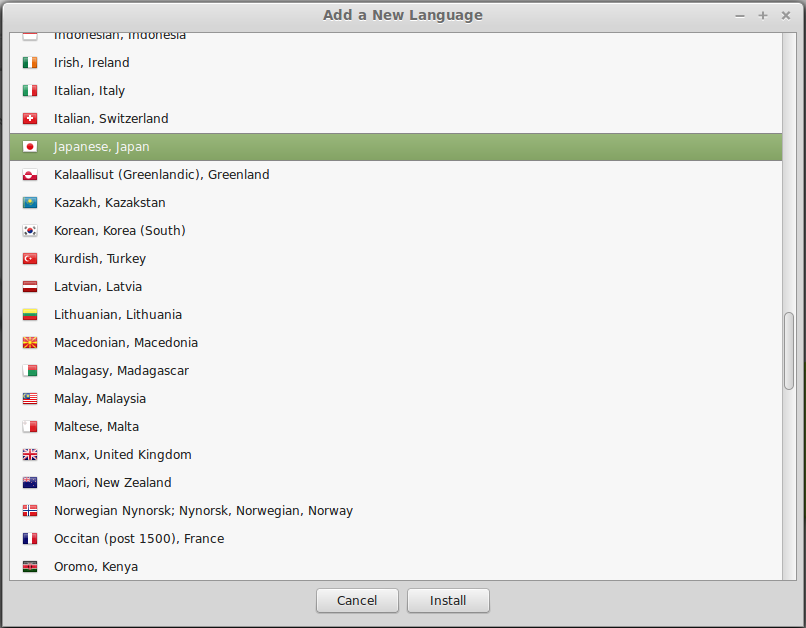
In the Installed Languages screen, scroll down to Japanese and check Input methods and Extra fonts, and press Apply Changes.

Installed Languages Screen

You will be prompted for your administration password.

Administration Password

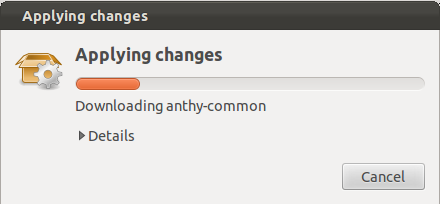
The necessary packages will start downloading.

Downloading Packages

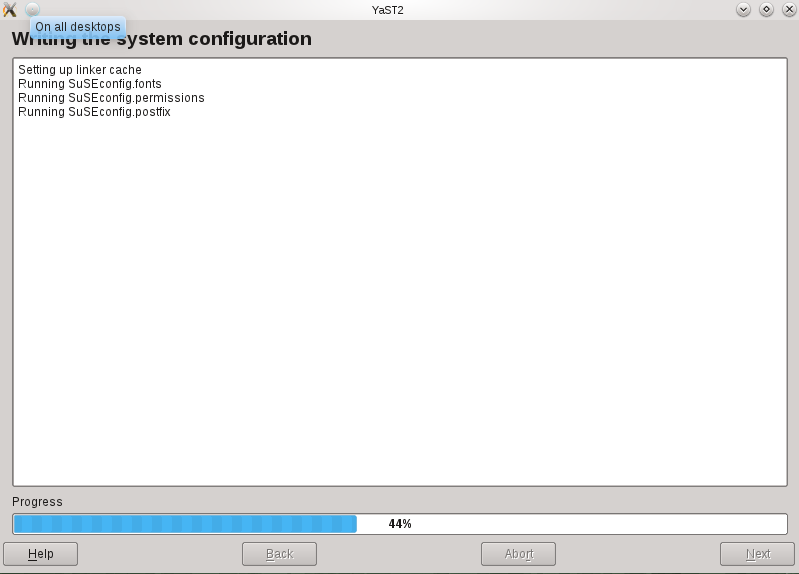
The downloaded packages will be installed automatically.

Installing Software

A dialog box confirming the Japanese language packages have been installed will be displayed.

Install Completed

After everything is installed, the next step is the set up the keyboard input method editor.

Select from the top panel SystemAdministrationLanguage Support

In the Language and Text screen, click on the Keyboard method input system dropdown and select ibus.

ibus

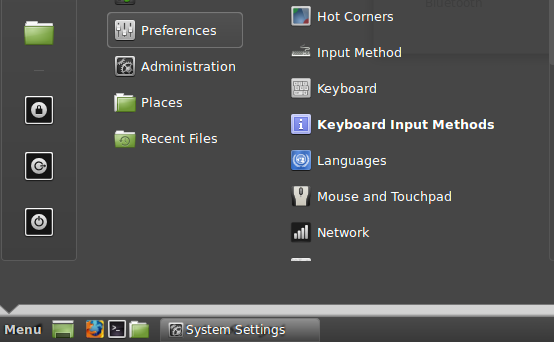
Next, set up ibus by selecting from the top panel SystemAdministration IBus Preferences

IBus Preferences

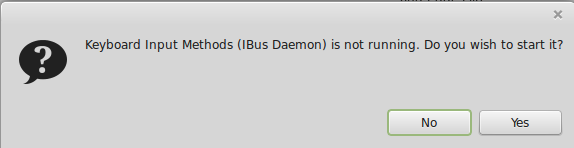
You may get the following dialog box saying IBus is not started. Press Yes to start it.

Start IBus

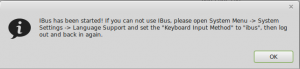
You may also get a dialog box with the following message. Just press OK.

IBus error

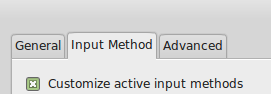
On the IBus Preferences screen, go to the Input Method tab.

IBus Preferences

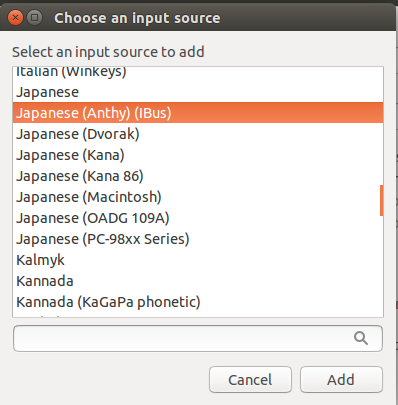
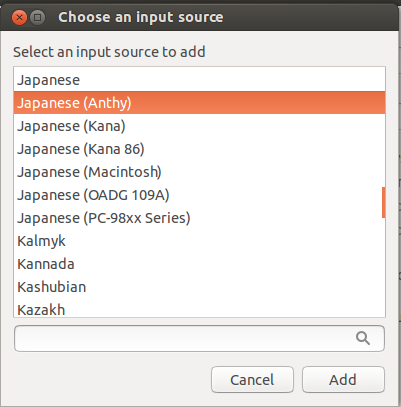
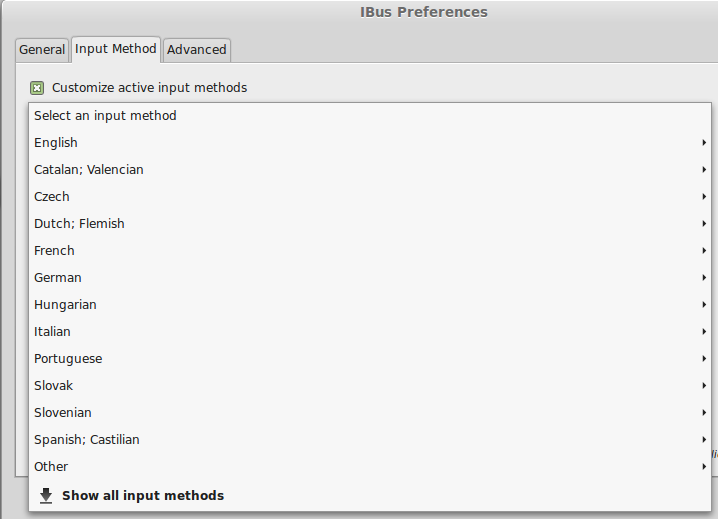
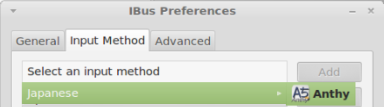
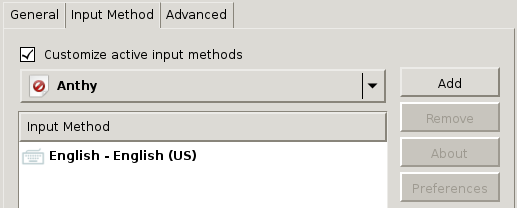
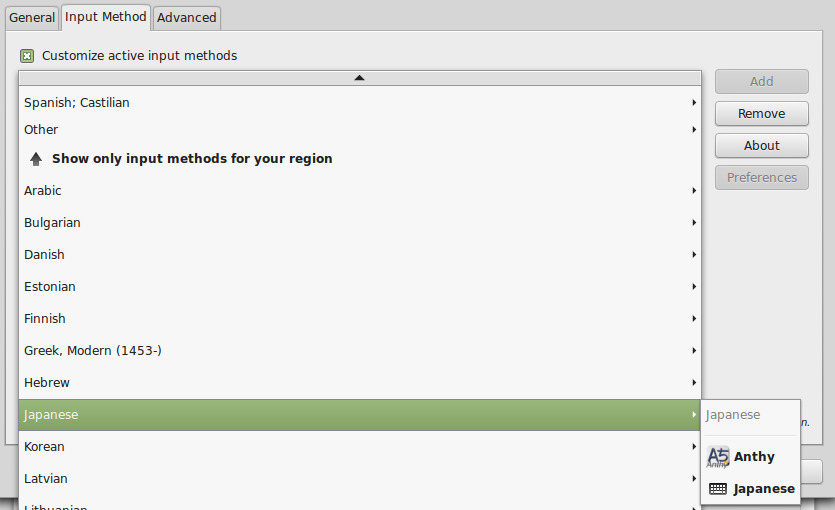
Press the Select an input method dropdown and select JapaneseAnthy.

Japanese - Anthy

Press Add on the IBus Preferences screen to add the Anthy Japanese input method.

Add Anthy

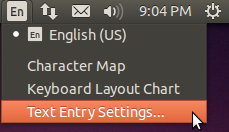
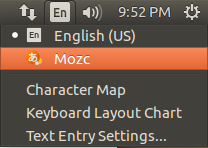
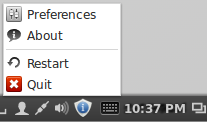
You should now have a little keyboard icon displayed somewhere on the right side of the top panel.

Keyboard Icon

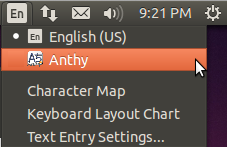
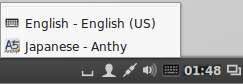
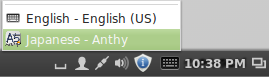
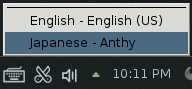
Open a text editor like gedit. While the cursor is in the text field, press the keyboard icon in the top panel and select Japanese – Anthy.

Select Anthy

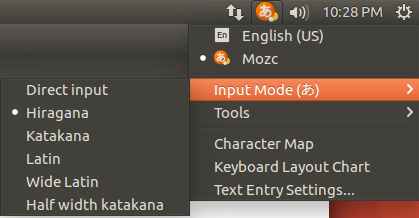
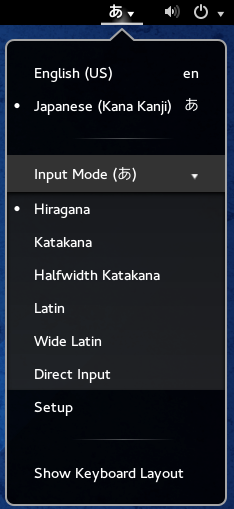
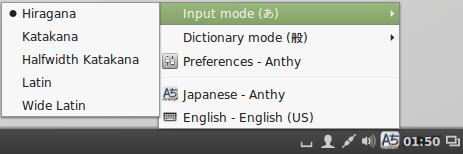
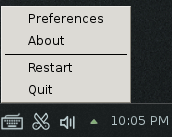
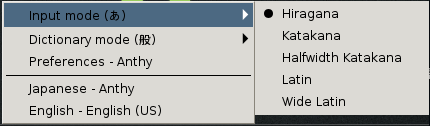
The Anthy Japanese IME toolbar will appear on your screen.

Anthy toolbar

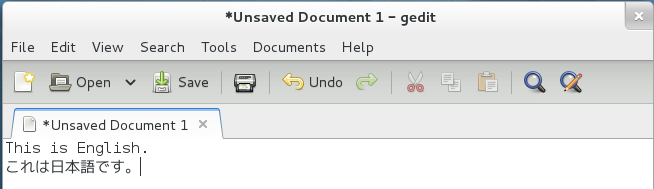
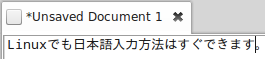
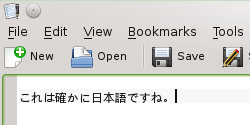
Use the toolbar to toggle the various Japanese input modes. Now you’re ready to type Japanese in Ubuntu!

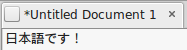
gedit with Japanese

That wasn’t very difficult. In fact, after you do it on a few machines you can get it all set up in under a few minutes.

There you go. With these steps, you can begin typing Japanese on your Ubuntu Linux system, regardless of what language the OS menus display in.


Japanese Input on Android Phones

February 15th, 2010

With the release of the first Google Android phones in Japan from NTT Docomo, there are finally phones with Google’s native Japanese keyboard input. The keyboard has been in the SDK, but it has not appeared on any handsets in the U.S. yet. I have not been able to find any information about when non-Japanese Android phones will be able to use the Japanese keyboard input.

Until there is a native Japanese keyboard input, the only usable option is the Simeji Japanese keyboard input. Simeji is a Japanese input app that lets you switch input modes on the fly between English and Japanese. It includes multiple Japanese input modes, including the standard keitai-style mode. Under the phone settings you can configure the keyboard to your preferences. I prefer the vibrate on touch option to keep the Japanese input mode feel similar to the default English keyboard on the HTC Hero.

The biggest drawback to Simeji is that it is an app. Since it is not a native part of the OS, it takes time to load every time you toggle the keyboard. There is also some lag when typing at times. It is always running in the background ready to be toggled to, but it never feels like it is a natural part of the phone’s OS.

Another drawback to using Japanese input on Android is that it does not work with text messages. You can input Japanese and sent text messages; you just can’t read any messages you receive. I don’t know if this is a problem with Sprint’s network or American text messages in general, but it is a problem. I can understand an older phone having problems receiving Japanese text messages. But from Android to Android I expect better. Between Android phones you can always use Google Talk, but there is no guarantee that the person you are messaging has notifications turned on for Talk, whereas with text messages that is almost guaranteed.

Simeji works—for the most part—and has lots of configuration options. It is great that someone has created this app because there is a need for it. But the native Android Japanese input keyboard should be made available to all Android phones. The iPhone gets this right; Google should too.

Batch Search and Replace

August 30th, 2008

Batch search and replace across multiple files seems to come up a lot. It’s good to know a quick and simple way to do this on text files.

Problem

Suppose you have 100 XML files and you want to add an attribute to one of the elements.

Current XML: <document author=”mark”>

Desired XML: <document date=”2008-08-08″ author=”mark”>

Any XML or even text editor can do search and replace on this easily through the GUI. But if you have 100 XML files that need the same thing done, you need a quick way to do this in batch.

Solution

We’ll write a shell script to read in all 100 XML files, do a search and replace to add the new attribute, and create a new version of each modified XML file in a new directory.

To run the shells script, you need either:

Here is the batch search and replace shell script:

for x in *.xml;
do
  sed -e 's/<document/<document date="2008-08-08"/g' < $x > tmp/$x;
done

Make sure the directory tmp/ already exits; that is where all your modified files will go.

That’s it. Just a simple for loop and a search and replace command. Next time you need to change something across multiple documents, write a simple script instead of doing it manually.

Generate a Concordance from an XML File

August 21st, 2008

A concordance is a list of all the words in a document, and there respective word count.

For example, if you had the following sentences: I like XML. I like computers. Do you like XML?

A concordance for those sentences would look like this:

3 like
2 I
2 XML
1 you
1 computers
1 do

Concordances are especially useful for finding the words used most often when building glossaries or multilingual dictionaries.

However, it is nontrivial to generate a concordance from an XML file, because XML elements, attributes, and attribute values are all just plain text words that will skew the results. I came up with a way to easily generate a concordance from an XML document using only the GNU Linux command line to create a concordance shell script.

To run the concordance script, you need either:

Here is the concordance shell script:

sed -e 's/<[^>]*>'//g < inputfile.xml |
tr -dc "a-zA-Z0-9'\- 12" |
tr "\<[0-9][0-9]*" "12"
| tr " "  "12" | tr "\r" "12" |
sort -f | uniq -ic | sort -nr > outputfile.txt

inputfile.xml is your XML file, and outputfile.txt is the concordance file created by the script.

The script does a number of things. First we have to remove all the XML, so it strips the tags to make a plain text file. Next it converts all spaces, punctuation, stand-alone numbers, Windows special characters, etc. into standard new line characters. At this point, every line has one word on it. Then it does the actual work to build the concordance by sorting every line, counting every line and their duplicates, then sorting in reverse numerical order.

It’s actually not that complicated. It just uses a few GNU command line tools to process the data, and strings them all together to form a script that takes an XML document and builds a concordance.

The concordance file generated is plain text, but you can import it into Microsoft Excel, or any spreadsheet program by using spaces to delimit the cells. In a lot of business settings, a plain text file wont do; but that same data in an Excel spreadsheet now becomes business data.

Translating Sentences for Trados Rather Than Ideas

March 30th, 2008

The benefits of translation memory tools such as Trados for translating are numerous; but they have their negatives as well. They encourage the translator to translate everything on a sentence by sentence basis. Every source sentence will have a corresponding target sentence. It is not always ideal to translate in this manner.

For example, consider the following Japanese sentence and its translation:

すしが好きですが、ウニはぜんぜんダメです。
I like sushi. However, I cannot eat sea urchin.

Notice that in Japanese it is natural to say that all in one sentence. English on the other hand works better as two sentences.

If you translated that Japanese sentence using Trados, you can split the English translation into two sentences. However, if you use that translation memory for translating English, you will get no matches for the sentences I like sushi, or However, I cannot eat sea urchin. You would have to know to expand the segment to span two sentences.

Translation memory CAT tools like Trados encourage you to translate with a one-to-one correspondence so the translation memory is useful in both directions. It is wasteful to misalign sentences because the resulting TM will not work if the language direction is reversed. Therefore, a translator using Trados will probably translate the above sentence as I like sushi, but I cannot eat sea urchin. This sentence is fine by itself, but it doesn’t have the same impact as separating them as single ideas.

This is just a simple example, but the problem is much bigger than style choices. When using Trados, you translate entire paragraphs line by line. Every source has a matching target. However, the way you organize a paragraph and express an idea in one language, may not be the same as in another language. But with Trados, you don’t have that freedom. You are given a sentence to translate, and then another, and another. You don’t have the freedom you would if you were translating by hand. If you choose the expand the source segment to encompass the entire paragraph, you have essentially made that segment worthless with respect to the translation memory.

Trados and translation memory CAT software are great tools, but they encourage translation of single sentences, rather than ideas or concepts. A test often used after a translation is to run the translation memory that was created against the original source document. You expect to get 100% matches for the entire document. However, a good translator will not translate everything line by line with one-to-one correspondence between source and target.

Translation is more than converting a sentence from one language to another. It’s about expressing something naturally in a different language. CAT tools like Trados don’t encourage the natural translation of ideas, but rather the conversion of sentences.

First Ever to be Trados Certified

February 17th, 2008

In 2006, SDL unveiled their Trados Certification program. I had been using Trados extensively at work and thought it would be neat to have the official Trados certification on my resume.

Soon after they released the Trados training program and certification tests, I signed up online to take the tests. To my surprise, the tests were hard. It had questions about what the specific menu names were and little details like that. If I had not used Trados as much as I had, I don’t think I would have passed. You had to be really familiar with the entire suite of tools.

I passed the test and got my own personal certification page generatred:

http://oos.sdl.com/asp/products/certified/index.asp?userid=14706

What was surprising was what came next. A few weeks later I got a package at work from SDL Trados. They sent a congratulatory card informing me that I was the first person to pass the Trados certification, and a bottle of vintage champagne! I certainly wasn’t expecting any of that.

Following that, they contacted me again for a quote and profile to put up on their certification Web site: (http://www.translationzone.com/en/certification/Default.asp). They also asked for a picture of me, but I guess I wasn’t photogenic enough for their site because they put a generic image of someone else above my quote. The current version of the page has a women and multiple quotes now.

SDL Trados Certification Page

In the end, it’s kind of neat. I can tell people I was the first person to ever be certified by SDL Trados. Since then I have also passed their SDL Trados 2007 certification as well.

Can You Translate This?

January 19th, 2008

At work I’m often asked things such as “How long will it take to translate 10 pages?” Managers usually don’t like my answer; They want to hear a specific time frame to fill in some gantt chart or something. The reality is, it depends. Most managers and such don’t understand what goes into translating something. It’s not as straightforward as just translating the words. There are other aspects that go into the localization process than just translation.

Expertise. No one is an expert on everything. If you have a technical document that needs translating, you first have to understand the content of the document. If you don’t understand electromagnetic fields in your native language, how are you going to translate that subject from another language. You will often have to research the subject matter before and during the translation process. It takes time to get familiar with a topic. It takes more time to look up industry and field specific terminology and concepts. If you have SMEs at your company, you are at the mercy of their schedules when you cannot locate information yourself.

Working with others. Unfortunately, not all translation projects can be done solely by the translator. For example, if you are given a video and asked to subtitle it in a different language, there are many steps involve that most people don’t realize:

  • Transcribe the audio
  • Translate the text
  • Match the text to the video
  • Reedit the video with the translated subtitles
  • QA check the subtitled video

Ideally, the translator will be provided with the transcription of the audio with a copy of the video so they can immediately start the translation. Then, work with the editor to set cut points for the translated text. Then the editor will reedit the video, and send it to the translator to check.

Unfortunately, what usually happens is the translator is sent the video and asked to translate subtitles for it. Now the translator has to spend time transcribing the text, then translate it. Next, they must come up with cut points themselves, and hope the editor understands it. The editor will then receive the translation and edit them into the video. It will probably never be checked, and most likely the subtitles aren’t going to match the on-screen dialog.

File formats. How long it will take to translate a document depends on what format it’s in. An XML file with pure text content and no markup can be translated easily. The text can be extracted and run through the translators favorite translation software.

A PDF on the other hand is not as easily accessible. Text may be extractable with some amount of effort, but the original document structure and style cannot be rebuilt automatically. Therefore, the translator will have to spend considerable time doing page layout work.

The worst case scenario is a scanned document, or raster graphics files. The text cannot even be extracted from the document, so translation software can’t be used. With a language like Japanese where a translator may not know the pronunciation of hard technical terms, the inability to cut and paste those words into an online dictionary creates lots of problems.

Most people don’t consider the file format when sending something to be translated. The just want it translated, and don’t want to pay for page layout and text extraction, because they don’t think that is involved with the translation process. If you send a Word document to a translator, but that word document has 50 JPGs in it with text to be translated, you are asking the translator to be a graphics specialist as well.

There are a lot that goes into the translation process. Translators often have to do much more than just translate words to do a good translation. Managers need to understand what goes into this process and provide translators with the resources they need so they can specialize on what they do best.

Localization and the Japanese Language

January 12th, 2008

This is a blog about localization, and some unique issues with the Japanese language when it comes to translation and localization.

My name is Mark. I work for a large Japanese semiconductor company as a localization engineer. I write documentation, translate documentation, and use software to increase translation efficiency. I also write software and create publishing systems to assist in the documentation and translation process. I have degrees in Computer Sciences and Japanese. I went to college in the U.S.A. and in Japan.

Documentation and localization has a number of interesting issue that come up that I want to talk about. Also, the Japanese language increases the complexity of our work and adds many unique considerations to the job that I want to cover.

Localizing Japanese is hard, but very interesting. As I work and discover new things, I want to share them on here.