
Archive for the ‘Japanese’ Category

Japanese Input on Ubuntu Linux 10.04 LTS Lucid Lynx

Tuesday, June 15th, 2010

The latest release of Ubuntu, 10.04 LTS Lucid Lynx, makes a lot of things easy in Linux. And setting up Ubuntu with a Japanese IME to type in Japanese is as easy as ever. Whether you are a student of Japanese or a native Japanese speaker, you will need to set up Ubuntu to type in Japanese if you are not on a Japanese system.

This simple tutorial will get you set up with a Japanese input method in as few steps as possible.

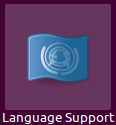
To start, select from the top panel SystemAdministrationLanguage Support

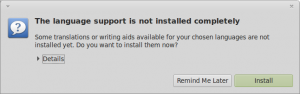
System - Administration - Language Support

In the Language and Text screen, press the Install / Remove Languages… button.

Language and Text Screen

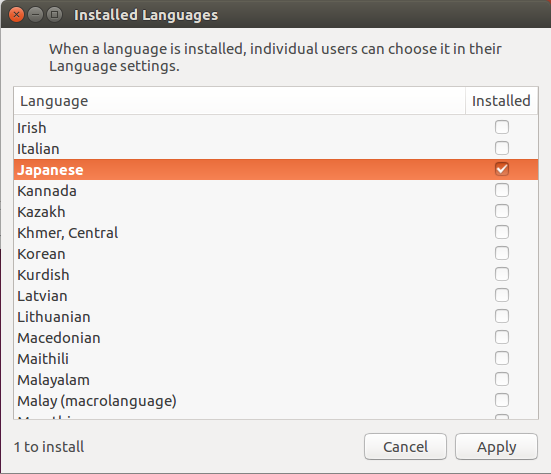
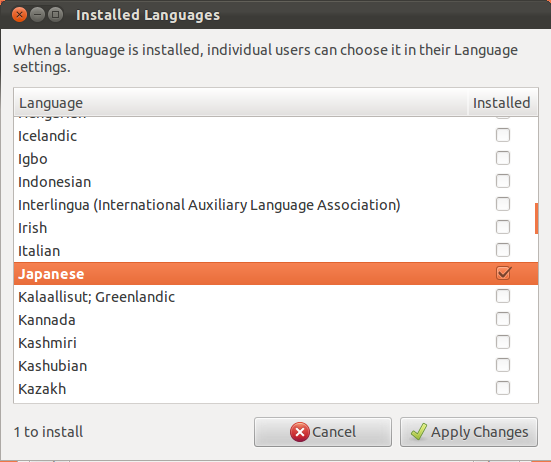
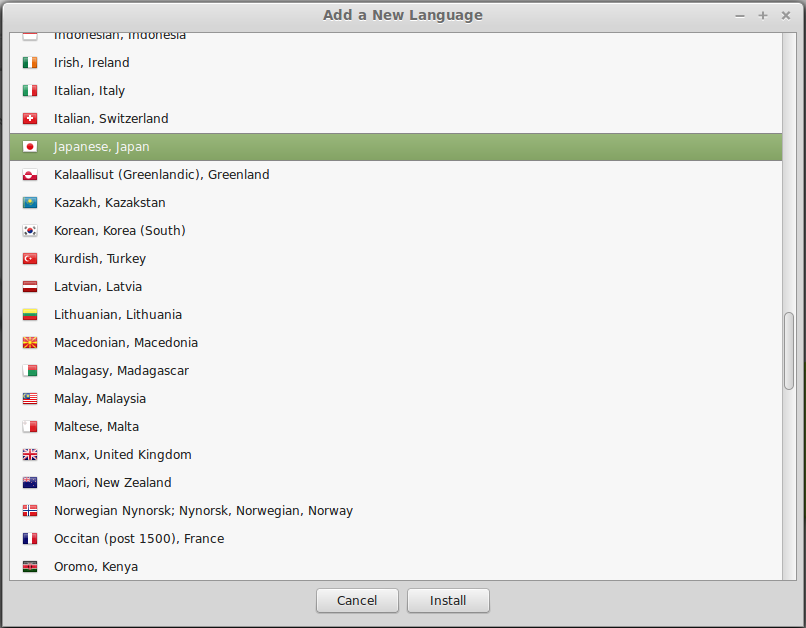
In the Installed Languages screen, scroll down to Japanese and check Input methods and Extra fonts, and press Apply Changes.

Installed Languages Screen

You will be prompted for your administration password.

Administration Password

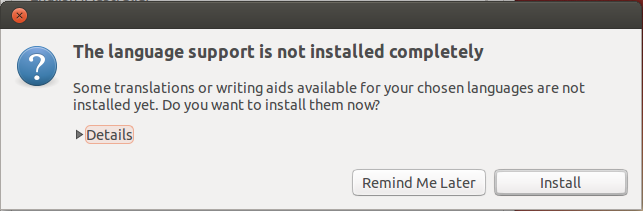
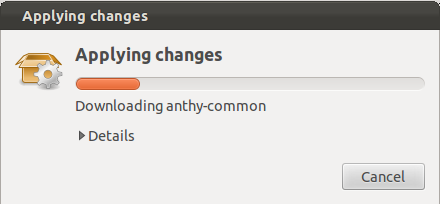
The necessary packages will start downloading.

Downloading Packages

The downloaded packages will be installed automatically.

Installing Software

A dialog box confirming the Japanese language packages have been installed will be displayed.

Install Completed

After everything is installed, the next step is the set up the keyboard input method editor.

Select from the top panel SystemAdministrationLanguage Support

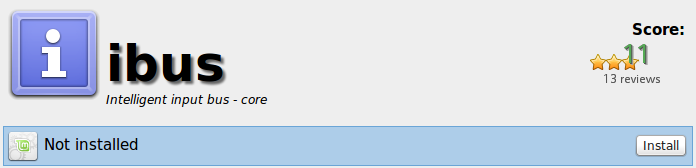
In the Language and Text screen, click on the Keyboard method input system dropdown and select ibus.

ibus

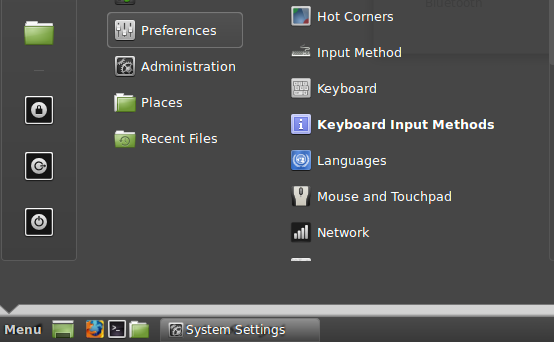
Next, set up ibus by selecting from the top panel SystemAdministration IBus Preferences

IBus Preferences

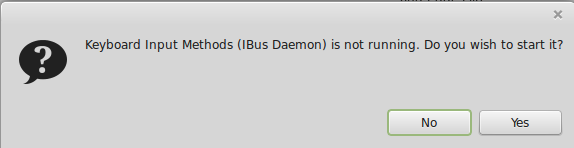
You may get the following dialog box saying IBus is not started. Press Yes to start it.

Start IBus

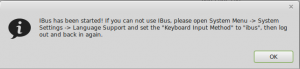
You may also get a dialog box with the following message. Just press OK.

IBus error

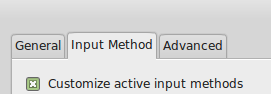
On the IBus Preferences screen, go to the Input Method tab.

IBus Preferences

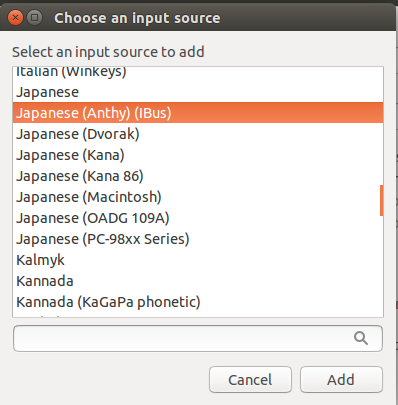
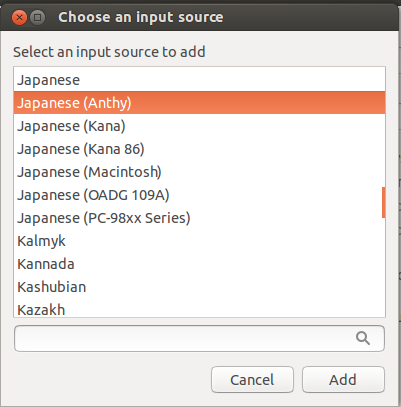
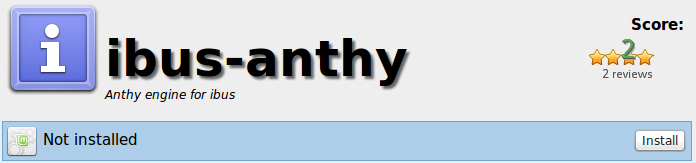
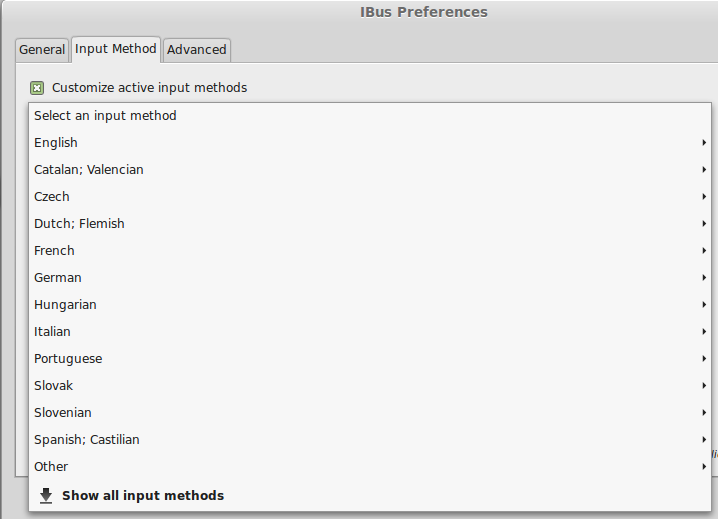
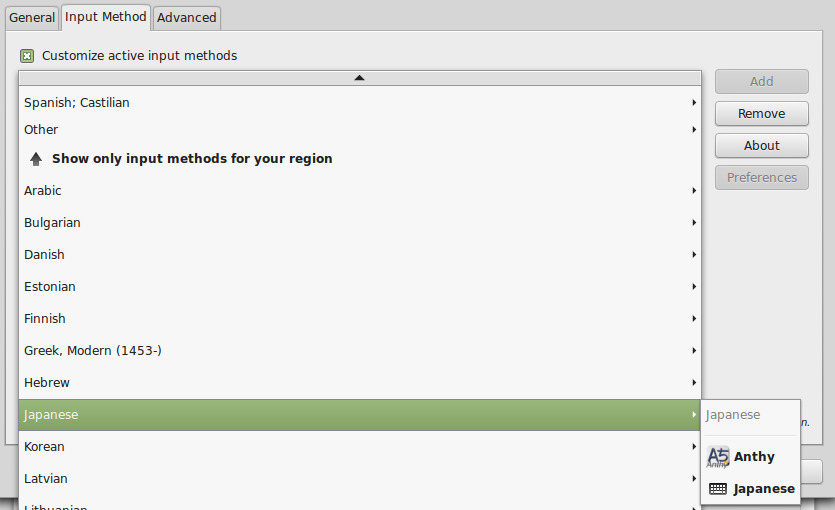
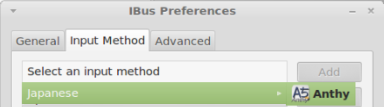
Press the Select an input method dropdown and select JapaneseAnthy.

Japanese - Anthy

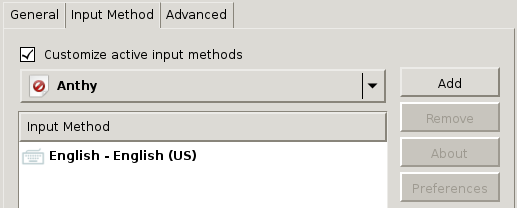
Press Add on the IBus Preferences screen to add the Anthy Japanese input method.

Add Anthy

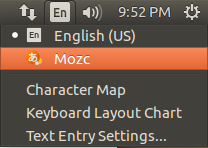
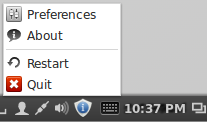
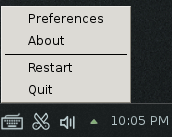
You should now have a little keyboard icon displayed somewhere on the right side of the top panel.

Keyboard Icon

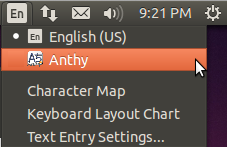
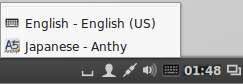
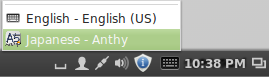
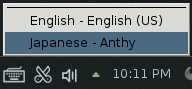
Open a text editor like gedit. While the cursor is in the text field, press the keyboard icon in the top panel and select Japanese – Anthy.

Select Anthy

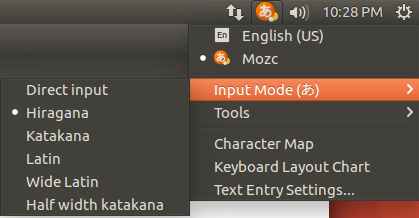
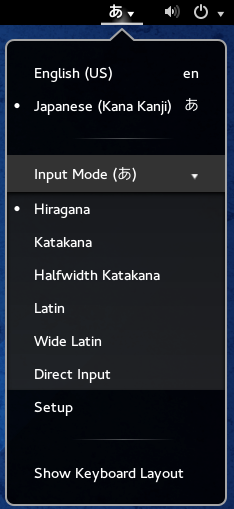
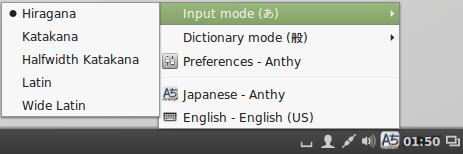
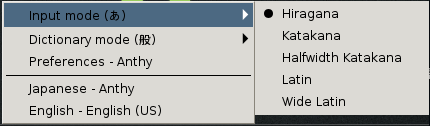
The Anthy Japanese IME toolbar will appear on your screen.

Anthy toolbar

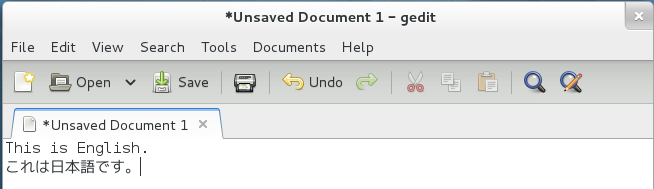
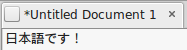
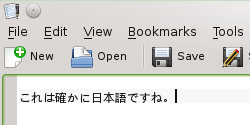
Use the toolbar to toggle the various Japanese input modes. Now you’re ready to type Japanese in Ubuntu!

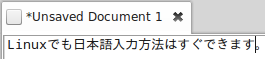
gedit with Japanese

That wasn’t very difficult. In fact, after you do it on a few machines you can get it all set up in under a few minutes.

There you go. With these steps, you can begin typing Japanese on your Ubuntu Linux system, regardless of what language the OS menus display in.


Japanese Input on Android Phones

Monday, February 15th, 2010

With the release of the first Google Android phones in Japan from NTT Docomo, there are finally phones with Google’s native Japanese keyboard input. The keyboard has been in the SDK, but it has not appeared on any handsets in the U.S. yet. I have not been able to find any information about when non-Japanese Android phones will be able to use the Japanese keyboard input.

Until there is a native Japanese keyboard input, the only usable option is the Simeji Japanese keyboard input. Simeji is a Japanese input app that lets you switch input modes on the fly between English and Japanese. It includes multiple Japanese input modes, including the standard keitai-style mode. Under the phone settings you can configure the keyboard to your preferences. I prefer the vibrate on touch option to keep the Japanese input mode feel similar to the default English keyboard on the HTC Hero.

The biggest drawback to Simeji is that it is an app. Since it is not a native part of the OS, it takes time to load every time you toggle the keyboard. There is also some lag when typing at times. It is always running in the background ready to be toggled to, but it never feels like it is a natural part of the phone’s OS.

Another drawback to using Japanese input on Android is that it does not work with text messages. You can input Japanese and sent text messages; you just can’t read any messages you receive. I don’t know if this is a problem with Sprint’s network or American text messages in general, but it is a problem. I can understand an older phone having problems receiving Japanese text messages. But from Android to Android I expect better. Between Android phones you can always use Google Talk, but there is no guarantee that the person you are messaging has notifications turned on for Talk, whereas with text messages that is almost guaranteed.

Simeji works—for the most part—and has lots of configuration options. It is great that someone has created this app because there is a need for it. But the native Android Japanese input keyboard should be made available to all Android phones. The iPhone gets this right; Google should too.

Localization and the Japanese Language

Saturday, January 12th, 2008

This is a blog about localization, and some unique issues with the Japanese language when it comes to translation and localization.

My name is Mark. I work for a large Japanese semiconductor company as a localization engineer. I write documentation, translate documentation, and use software to increase translation efficiency. I also write software and create publishing systems to assist in the documentation and translation process. I have degrees in Computer Sciences and Japanese. I went to college in the U.S.A. and in Japan.

Documentation and localization has a number of interesting issue that come up that I want to talk about. Also, the Japanese language increases the complexity of our work and adds many unique considerations to the job that I want to cover.

Localizing Japanese is hard, but very interesting. As I work and discover new things, I want to share them on here.