



The latest release of Ubuntu, 10.04 LTS Lucid Lynx, makes a lot of things easy in Linux. And setting up Ubuntu with a Japanese IME to type in Japanese is as easy as ever. Whether you are a student of Japanese or a native Japanese speaker, you will need to set up Ubuntu to type in Japanese if you are not on a Japanese system.
This simple tutorial will get you set up with a Japanese input method in as few steps as possible.
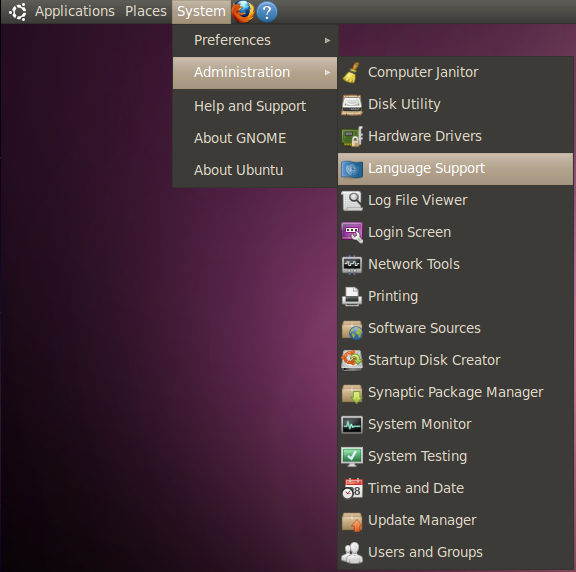
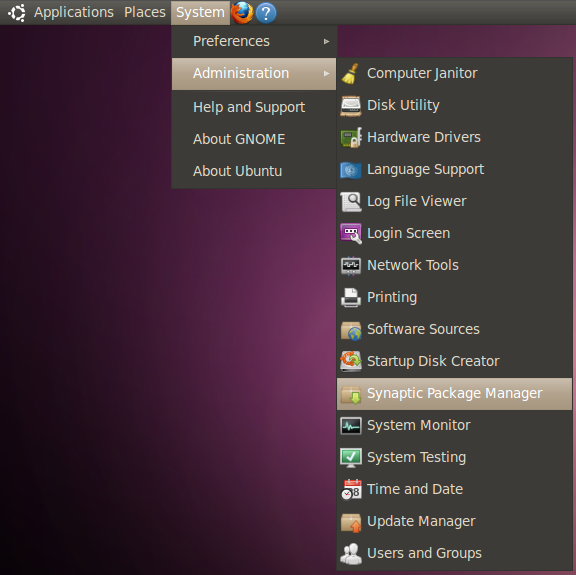
To start, select from the top panel System → Administration → Language Support
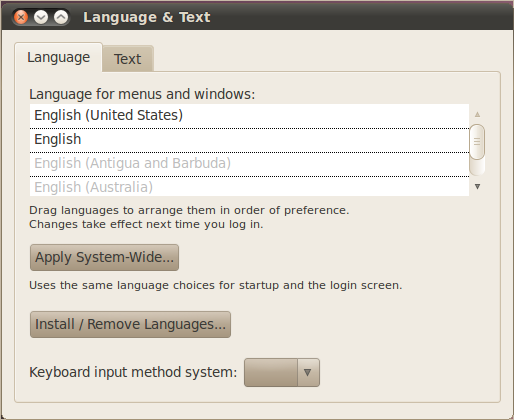
In the Language and Text screen, press the Install / Remove Languages… button.
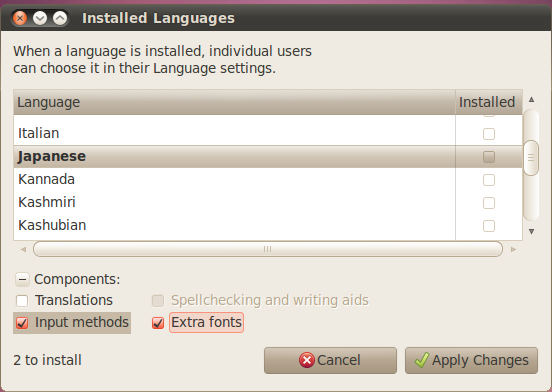
In the Installed Languages screen, scroll down to Japanese and check Input methods and Extra fonts, and press Apply Changes.
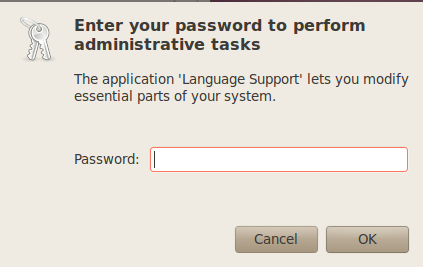
You will be prompted for your administration password.
The necessary packages will start downloading.
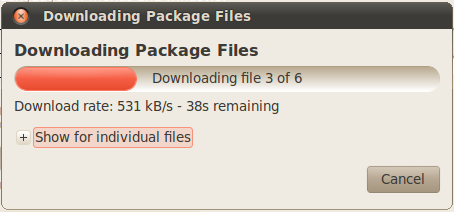
The downloaded packages will be installed automatically.
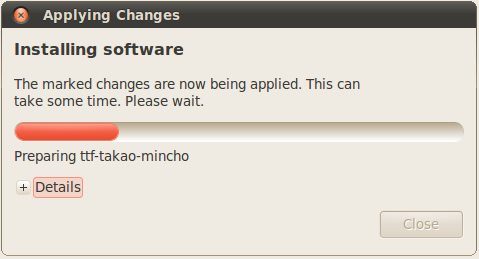
A dialog box confirming the Japanese language packages have been installed will be displayed.
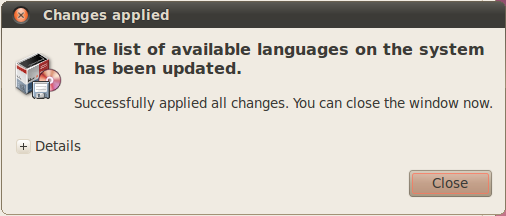
After everything is installed, the next step is the set up the keyboard input method editor.
Select from the top panel System → Administration → Language Support
In the Language and Text screen, click on the Keyboard method input system dropdown and select ibus.
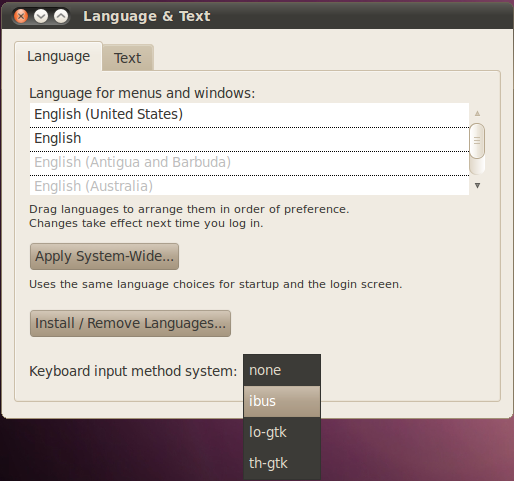
Next, set up ibus by selecting from the top panel System → Preferences → IBus Preferences
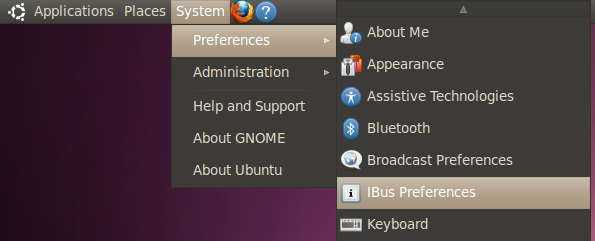
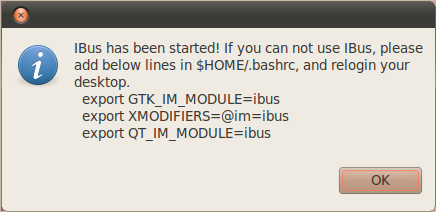
You may get the following dialog box saying IBus is not started. Press Yes to start it.
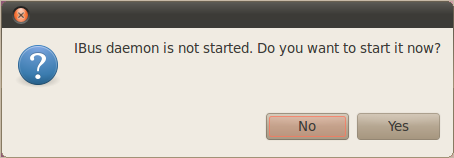
You may also get a dialog box with the following message. Just press OK.
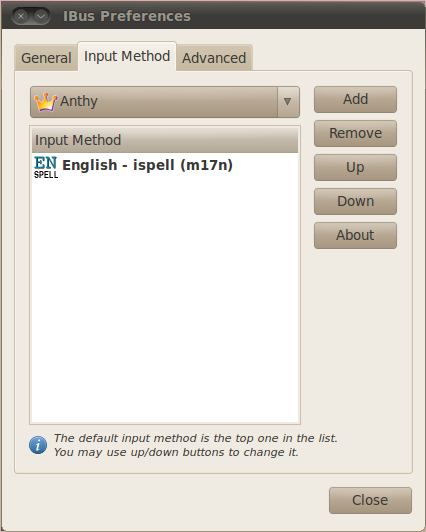
On the IBus Preferences screen, go to the Input Method tab.
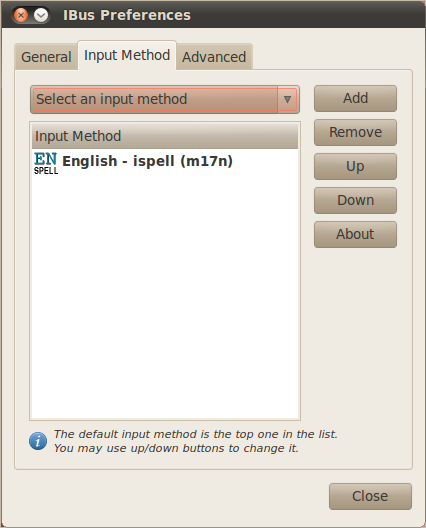
Press the Select an input method dropdown and select Japanese → Anthy.
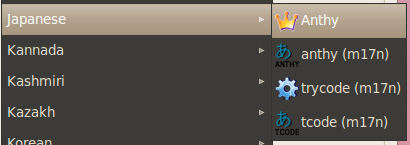
Press Add on the IBus Preferences screen to add the Anthy Japanese input method.
You should now have a little keyboard icon displayed somewhere on the right side of the top panel.

Open a text editor like gedit. While the cursor is in the text field, press the keyboard icon in the top panel and select Japanese – Anthy.

The Anthy Japanese IME toolbar will appear on your screen.

Use the toolbar to toggle the various Japanese input modes. Now you’re ready to type Japanese in Ubuntu!
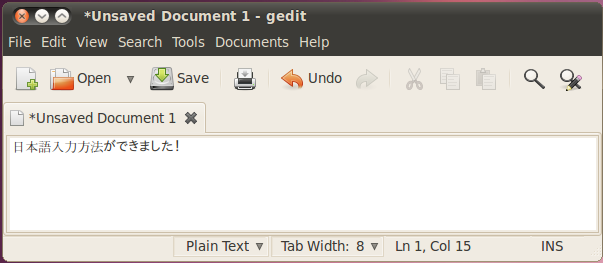
That wasn’t very difficult. In fact, after you do it on a few machines you can get it all set up in under a few minutes.
There you go. With these steps, you can begin typing Japanese on your Ubuntu Linux system, regardless of what language the OS menus display in.

very useful guide. I had no idea ubuntu had done away with scim, it took me a couple of hours of trying to solve the issue before finding this article.
I’m happy to see that the setup is simpler than before. No more messing around to get Japanese input in firefox etc!
Anyway, thanks for the walkthrough!
ありがとう!すごく助かりました!!
すごい!
Worked like a charm. Thank you so much!
本当に有難う御座います。助かりました。
Many thanks. I am new to Japanese and started to learn it with a Japanese tutor. It’s amazing how the Japanese characters just appear! Works of course also in email etc.!!
I can only repeat “scott”: Worked like a charm. Wish all walkthroughs were made soooo intelligently!!!
Thanks again
Great explanation. Thank you.
Thanks for the great explanation. It worked perfectly. The last time I tried this in Linux was a few years ago. It’s much easier now.
Wow. That is an elegant guide! Thanks for the walkthrough.
Thanks this was very helpful and very easy to follow. The only thing that didn’t happen for me was the tool bar after choosing the language from the keyboard icon but I can still type so it is all gravy.
Excellent how to! I am going to get back into translating
J > E.
Now if I can get my blackberry set-up. They have zero customer support. BB website is a bust.
regards,
Gary
Thanks for this helpful how=to. Just a minor note. ‘Ibus Preferences’ in under System>Preferences not System>Administration.
Thanks Bashar. I’ve updated it to say Preferences.
最高や。ありが10
非常に簡単です。ありがとうございます!
On a side note, the process is exactly the same for 10.10 Maverick Meerkat.
Can’t use it. Whenever I select a input field, then click on the keyboard icon on the top, the input field losts the focus and the iBus menu says “no input window selected” or something similar to it (mine is in portuguese).
How can I solve this? Thank you.
ありがとう! Very useful guide!
On 10.10 netbook release, switching to Desktop Login, IBus Setup is under System –> Preferences –> Keyboard Input Method
Anyway it can easily be launched via terminal with ibus-setup
I’m having the same “No input window” problem. Would it have anything to do with me trying scim first?
The “No input window” error usually means you aren’t in a text editable field in an application. Click on some text field in an application and then try to change input modes.
Is the “No input window” error happening when you try to type in Japanese in all applications, or only specific applications?
I could download Japanese input method.
However, my lap-top tells me only Anthy(m17n).
There was not Anthy as this instruction describes.
Moreover, this system has not been able to convert Hiragana to Kanji.
How can I fix it?
Hi Kazu
Are you using Ubuntu 10.04? Or are you using a different version of Ubuntu, or even a different Linux distribution? Each Linux distribution and each version of each distribution is a little different.
I have exactly the same issue as Kazu. I’m using Ubuntu 10.04 and after following the instructions, just like Kazu says, there is no option for “Anthy”–but there is one for “Anthy(m17n)”.
The language toolbar looks different: it only has three icons, not five as shown, and only the gold star at the end is the same.
And like Kazu says, pressing space does NOT cycle through kanji options–it does absolutely nothing apart from change the middle icon in the toolbar to a kanji character.
Any ideas or suggestions?
I’ve followed the instructions and I can type hiragana just fine, but when I hit space to get kanji, nothing happens.
I’m using 10.04LTS and, like Kazu says, the option is Anthy(m17n); there is no option for “Anthy” with a crown icon as shown in the article. The iBus menu doesn’t look like your screenshot (because it says “Anthy(m17n)” and the pop-up toolbar looks different too–the icon is not a crown, it’s あ with Anthy written underneath; the next icon is a “aあ”; the third and final icon is a gold star.
Is there a way of inputting kanji using the keyboard input method that gets installed at present?
Following on from my previous post, I’ve now got IBUS to work well enough to be able to enter Japanese text including Kanji. The method is the same as Mark’s article except (a) you need to tick the “Show input method name on the language bar” in the IBUS Preferences dialog and (b) you need to reboot to get everything to work.
At this point IBUS works, but only from the keyboard. The menu on the IBUS icon in the notification area doesn’t seem to work at all. But as long as you know the keys to press you can enter Japanese. The important keys are (a) CTRL-SPACE to toggle IBUS on and off and (b) ALT-SHIFT to switch languages (or possibly cycle through them—I’ve only got two languages installed).
But this assumes you know how japanese charaters are arranged on key board. Say i have non japanese keyboard. Is there something like virtual key board for japanese ?
Jigar, when you use this type of Japanese input you normally use a normal qwerty layout. So you just type normally and you will get the expected Japanese characters using the qwerty layout.
Hi. I’m very new to Japanese, and I installed anthy with the hope of learning. Things are going well, but I ran into a problem: a japanese friend spells his name with an alternate form of a kanji, and that spelling was not in anthy. How could I type it without cutting and pasting from the character map?
In case anyone else is having the same issue, the solution is to use a program called kasumi. It can add entries to anthy’s built-in dictionary so alternate kanji are presented as options. In the spelling column, put the kanji (cut and pasted from the character map if necessary). In the sound column, write the hiragana (not romanji!) that spell it. Then hit save. Then hit close. Done! 🙂
Eric,
That is a common problem with kanji input. Sometimes the dictionary back end doesn’t have every possible kanji pair for things like names of people and places. In those cases, you will need to know how to individually input each kanji. In that case, the reading you type in to input the kanji may be different than how it is read in a kanji pair.
Hi,
I used to be able to type in Japanese with this setting but suddenly it has stopped working…
I’ve checked all the settings and they are the same as above however I can still only type in English. Can you recommend a way to fix this?
Thanks a lot for your help
No ideas anyone?
When I click on the little IBus keyboard at the top of the screen it gives the option of Japanese-Anthy or English-ispell(m17n). When I click on Japanese-Anthy nothing happens…
Would really appreciate any help.
That was very helpful… but it’s just for kana… and do u know some program for writting kanji characters?
thank you, I had forgotten all this. ありがとうございました!
どもありがとう!
This is awesome!!!!
どもありがとございます!!!!!!!!!!!!!!! 😀
ありがとう!
please help me.I need to japanese keyboard.
ありがとう!
Thanks. Using Ubuntu 14.04 and works great! Had to go slightly of-course as your tutorial is a bit outdated but it worked perfectly in the end! Thank you very much. 🙂