



This tutorial will show you how to set up and install Japanese input method IME (日本語入力方法) on Linux Mint 12 Lisa so you can type in Japanese. Linux Mint is quickly becoming one of the more popular Linux distributions. Linux Mint 12 comes in a Gnome 2 and Gnome 3 variety. This tutorial works for either version, however, the menus look a little different in Gnome 2.
Linux Mint 12 Japanese IME Setup Procedure
Click on the Mint Menu and navigate to Other → Software Manager.
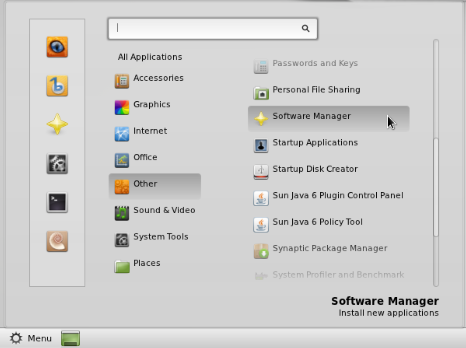
In the Software Manager, search for ibus.

Select ibus.
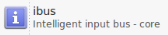
Click Install.
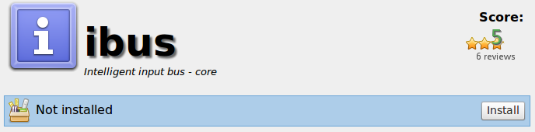
In the Authentication Required dialog box, enter your system password and press Authenticate.
Software Manager will now download and install IBus in the background.

While IBus is installing, search for anthy.

Select ibus-anthy and click Install.
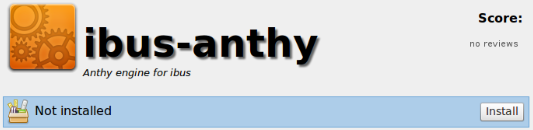
In the Authentication Required dialog box, enter your system password and press Authenticate.
Software Manager will now download and install ibus-anthy in the background.
When the activity bar on the bottom shows 0 ongoing actions, installation is complete.

Close Software Manager.
From the Mint Menu, navigate to System Tools → System Settings.
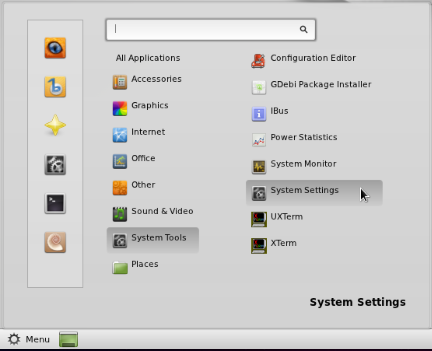
Open Language Support.

Note: If language support was not installed during the Mint install process you may get a pop up dialog indicating that the language support is not installed completely. In that case, select Install to install the language support. In the Authentication Required dialog box, enter your system password and press Authenticate. The Applying changes screen will display and show the installation progress. When the language support has been fully installed, the Language Support screen will display.
On the Language Support screen, select Install / Remove Languages….

Scroll down and check Japanese, and then press Apply Changes.

On the Language Support screen, press the Keyboard input method system: drop down and select ibus.

Then press Close.
Click on the Mint Menu and select System Tools → IBus.
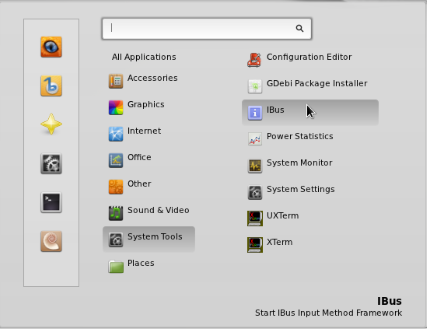
You should now have the little IBus keyboard icon displayed somewhere on the right side of your Gnome top panel.

Click on the IBus keyboard icon and select Preferences.
On the IBus Preferences screen, go to the Input Method tab.
Press the Select an input method dropdown and select Japanese → Anthy.
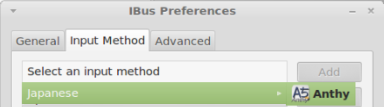
Press Add on the IBus Preferences screen to add the Anthy Japanese input method.
Open a text application like Text Editor. While the cursor is in the text field, press the Ibus keyboard icon in the top panel and select Japanese – Anthy.
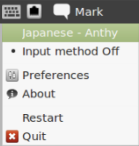
The Japanese Anthy toolbar should appear and you can now type in Japanese. Place the cursor in a text input application like Text Edit and try to type in Japanese.
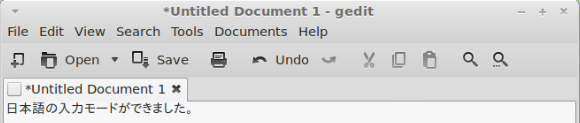
That’s all there is to it. Linux Mint is known to be a very easy to use distribution, but it takes quite a few more steps to install Japanese input than the latest versions of Ubuntu or Fedora.
Note: I had issues with the Anthy toolbar not appearing and instead showed this icon which usually means no input window found. But, I could still type in Japanese in this mode, so no worries if this happens to you.

Note: I had trouble when trying to add Japanese on the Install / Remove Languages screen. It worked fine in the Gnome 2 version of Mint 12 I installed in a virtual machine, but it gave a Software database is broken error message in the Gnome 3 version of Mint 12 I installed on a physical laptop. I tried reinstalling twice but I kept getting the same problem. It may have been a problem with the laptop because I also had issues when trying to install drivers for the wireless card. I had no issues with Japanese input on Mint in a VM.
Had to log out and back in to get it to work (using Live CD).
I’m facing similar problem with Korean and Chinese input with ibus. I didn’t have this when using Linux Mint 11 Katya.
Thank you very much for the clear instructions. Everything is working fine.
Just as a quick note, you don’t need to install ibus separately- installing ibus-anthy will install all dependencies automatically.
Everything seems to work great thanks for the great instructions. Note that what the window with a crossed circle means is that there is that the icon that was looked for was not found. It should in no way affect one’s experience with ibus.
How do I do the same for the KDE desktop? I can’t find the “Language Support” option anywhere.
Do you know if there is a way for the ‘crown’ Anthy icon to show up. That way you can create a shortcut to write only in katakana… I had the previous linux mint version and it worked fine but not with Lisa.. any ideas? thank you so much!
From Fermin FM in another post.. it might be interesting:
“You can also change hiragana to katakana, while the text is highlighted (underlined), by pressing the F7 key. Here’s a list of what other function keys do:
F6: Hiragana
F7: Katakana
F8: ‘Narrow’ katakana
F9: ‘Wide’ romaji
F10: ‘Normal width’ romaji”
I’m having trouble with this. I’m running Linux Mint 12 KDE edition, and so some of the steps are a little different. I end up with the ibus icon and the Anthy IM selected, but no matter what I do it won’t enter text in Japanese.
Under preferences, I set the “Enable/Disable” shortcut key to “Zenkaku_Hankaku” (the button to the left of the “1” key on my Japanese keyboard), but I still can’t activate Japanese typing at all. It’s very frustrating… any help?
Great tutorial. Thank you so much. It is a very smart input. Holding K and A together I can get KA (か).
However, you should add that after language installation we should move the new position to the top part of the list written in black to make it work.
Installing (ibus-Anthy) Japanese IME on Mint12 KDE
1. System Settings -> Locale -> System Languages -> Download Language support -> wait for download to complete
2. Install Tab -> Japanese -> Download Language Support -> Wait for Download to complete -> Do not close this window
3. Synaptic Package Manager -> mark for downloads: Ibus Anthy, Mecab & Kasumi -> Apply -> Close after changes applied
4. Applications -> Settings -> Keyboard Input Methods -> Click “Yes” to start ibus daemon -> close
5. Go back to the System Language Window from Step 2 above -> Set System Language Tab -> Select Japanese Language -> go to the drop-down box at the bottom right and select ibus -> Click Apply -> click OK when Alert box says the default system language is Japanese -> your original default system language and click apply. (We don’t want our system language to be Japanese, we only want Japanese support.)
6. Click Country/Region & Language on the left -> Move the desired language to the right from the left with Japanese now being an option -> click Apply and OK for the Alert Box. -> wait for it to update
7. Click on Overview at the top to go back to the main systems settings -> Click on “Startup and Shutdown” at System Administration on the bottom -> click “Add Program” -> Type “ibus” in the text box and select “ibus-daemon” -> Click OK
-> Click Application Tab -> Type in the following text box: Name: “Ibus”, Description: “Japanese IME”,
Command: “ibus-daemon -d” -> click OK (This will start-up Ibus everytime the system boot up). -> Close System Settings Window.
8. Shutdown -> Restart
9. Applications -> Settings -> Keyboard Input Methods -> Input Method Tab -> Click on the “Select and Input Method” drop-down box -> “> Japanese” will be displayed” with Japanese greyed-out. -> Do not click on “Japanese” but click on the “>” before it. -> “Anthy” will appear -> Select “Anthy” -> Click “Add” -> “Japanese Anthy” will appear in the text area. -> close.
10. Shutdown -> Restart
11. Test with several input windows such as “kate”, “mozilla” & “LibreOffice Writer”. It had only worked for “kate” before the shutdown/restart in step 10 above.
Very helpful instructions and I loaded up Korean as I have a Korean keyboard on my Haier W-18 laptop. Since I have a Korean/English input key this makes switching very easy. But again, thank you so much for your very helpful instructions. God bless. Nic
I have problem with Kasumi dictionary editor for Anthy. It displays error message that I had entered invalid character (not a hiragana) and now I can’t launch it.
Is there any way to reset Kasumi or Anthy dictionary data, so that I can launch Kasumi?
I normally don’t comment on random tutorials on the internet, but I have to complement you for making one of the most straightforward guides I’ve had the pleasure of reading. どうもありがとうございます。